
How to Stay Safe from Phishing Attacks (2026 Guide)

Phishing attacks are one of the most common and dangerous cyber threats today. Every year, millions of people lose money, personal data, and access to their accounts because of simple but convincing scams.

What Is a Phishing Attack?

A phishing attack is when a scammer pretends to be a trusted company or person to trick you into:

  • Sharing passwords
  • Revealing bank details
  • Clicking malicious links
  • Downloading harmful files

These attacks often appear to come from companies like PayPal or Amazon, making them look legitimate.

 Common Types of Phishing Attacks

 Email Phishing

Fake emails asking you to “verify your account” or “reset your password.”

SMS Phishing (Smishing)

Text messages with links like:

“Your package is delayed—click here to reschedule.”

Voice Phishing (Vishing)

Scammers call pretending to be:

  • Banks
  • Government agencies
  • Tech support

 Spear Phishing

Targeted attacks using personal information to appear more convincing.

Warning Signs of a Phishing Scam

Watch for these red flags:

  • Urgent or threatening language
  • Suspicious links or attachments
  • Misspelled email addresses
  • Requests for sensitive information
  • Messages that feel “off” or unexpected

 How to Protect Yourself from Phishing

1. Don’t Click Unknown Links

Always go directly to the official website instead of clicking links in emails or messages.

2. Verify the Sender

Check the actual email address—not just the name.

3. Enable Two-Factor Authentication (2FA)

Use apps like Google Authenticator or Microsoft Authenticator for added security.

4. Use Strong Passwords

Avoid using the same password across multiple accounts.

5. Keep Your Devices Updated

Updates fix security vulnerabilities that attackers exploit.

6. Install Trusted Security Software

Protect your devices with reliable tools like:

  • Bitdefender
  • Norton 360

These can block malicious links and detect threats in real time.

7. Be Careful on Social Media

Scammers often use platforms like Facebook to send fake links or impersonate people you know.

8. Never Share Sensitive Information

No legitimate company will ask for:

  • Passwords
  • PINs
  • Verification codes

Special Tips for Families & Elderly Users

  • Always double-check before clicking links
  • Ask a trusted family member if unsure
  • Be cautious of phone calls asking for money or access
  • Avoid rushing decisions

 What to Do If You Clicked a Phishing Link

Act quickly:

  1. Change your passwords immediately
  2. Enable 2FA on all accounts
  3. Contact your bank if financial info was shared
  4. Run a full antivirus scan
  5. Monitor your accounts for unusual activity

Best Tools to Stay Protected

For complete protection, consider:

  • Norton 360 – All-in-one security (VPN, antivirus, identity protection)
  • Bitdefender – Advanced threat detection

Final Thoughts

Phishing attacks rely on urgency, fear, and trust. The best defense is simple:

 Stop. Check. Think before you click.

A few extra seconds can save you from serious financial and personal loss.

 Call to Action

Want to stay protected?

 Start using trusted cybersecurity tools today
 Share this guide with your family and friends
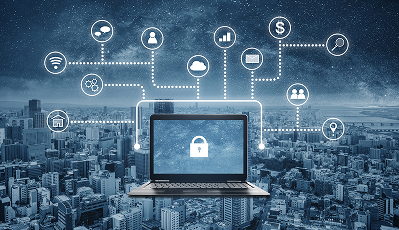
Top 10 Cybersecurity Best for Elderly, youth and businesses

Here are 10 essential cybersecurity practices** tailored for both elderly users and young people. The risks differ slightly, but these cover the most common threats each group faces today:

  1. Use Strong, Unique Passwords

Avoid simple passwords like names or birthdays. Use long combinations (12+ characters) and never reuse passwords across accounts.

A password manager like LastPass or 1Password can help.

  1. Enable Two-Factor Authentication (2FA)

Even if someone steals your password, 2FA adds a second layer (SMS code or app approval).

Use apps like Google Authenticator or Microsoft Authenticator.

  1. Be Careful with Emails & Messages (Phishing)

Do not click unknown links or download attachments from strangers.

Watch for scams pretending to be banks, government, or services like PayPal or Amazon.

  1. Install Apps Only from Trusted Sources

Download apps only from official stores like Google Play Store or Apple App Store to avoid malware.

  1. Keep Devices Updated

Regular updates fix security holes. This applies to phones, computers, and even apps.

  1. Use Antivirus & Security Software

Install trusted protection such as Norton 360 or Bitdefender to detect threats early.

  1. Avoid Public Wi-Fi for Sensitive Tasks

Public Wi-Fi can expose personal data. Avoid banking or logging into important accounts unless using a secure VPN.

  1. Protect Personal Information

Never share sensitive details (ID, passwords, banking info) online or over the phone unless you are 100% sure who you're dealing with.

  1. Watch Out for Social Media Scams

Young users are often targeted through fake profiles, while elderly users may face impersonation scams.

Platforms like Facebook and Instagram are common targets.

  1. Verify Before You Trust

If someone calls claiming to be from a bank or government, hang up and call the official number directly.

Scammers often create urgency—don’t rush decisions.

 Extra Tips by Age Group

For Elderly

 Be cautious of phone scams and tech support fraud.

Ask a trusted family member before making financial decisions online.

For Young People:

Avoid sharing location or personal details publicly.

Be careful with online gaming chats and unknown links.

Phishing Attacks: How to Stay Safe

Phishing is less about “hacking” and more about tricking you into helping the attacker. Staying safe comes down to slowing down, checking details, and using a few protective tools.

What to watch for

  • Phishing usually arrives as:
  • Emails or texts pretending to be your bank, delivery service, or a company like PayPal or Amazon
  • Messages with urgent warnings (“Your account will be locked”)
  • Links to fake login pages that look real

Practical ways to stay safe

  1. Don’t trust the message—verify it

If you get a warning or request, don’t click the link.
Instead, open your browser and go directly to the official website yourself.

  1. Check the sender carefully
  1. Pause when you feel pressure
  • Phishing relies on panic:
  • Act now!
  • “Urgent security alert!”

Legitimate companies don’t force instant decisions.

  1. Never share sensitive information
  • No real company will ask for:
  • Passwords
  • PINs
  • One-time verification codes
  • If asked, assume it’s a scam.
  1. Use Two-Factor Authentication (2FA)

Add a second layer of protection with apps like Google Authenticator or Microsoft Authenticator.

  1. Double-check website addresses
  • Before logging in:
  • Look for misspellings (paypa1.com)
  • Make sure it’s the official domain
  1. Avoid unknown links and attachments
  • Especially from:
  • Unexpected emails
  • SMS messages (smishing)
  • Social media DMs (e.g., Facebook)
  1. Keep your device protected

Use trusted security tools like Bitdefender or Norton 360 and keep everything updated.

  1. Be cautious with phone calls

Scammers may call pretending to be:

  • Banks
  • Government
  • Tech support

Hang up and call the official number yourself.

  1. Limit what you share online

The more attackers know about you, the more convincing their scams become.

 If you think you’ve been phished

Act quickly:

Change your passwords immediately

  • Enable 2FA
  • Contact your bank if needed
  • Scan your device for malware
  • Watch for suspicious activity

Simple habit that saves you

Stop → Check → Then act.
That one pause prevents most phishing attacks.

Phishing Attacks : New Tactics and How to Stay Safe

A phishing attack is an online scam in which attackers trick you into revealing sensitive information, such as passwords, banking details, or personal data, 
by posing as a trusted source (like a bank,
 delivery company, or login page.
How phishing attacks work
Phishing usually follows a simple pattern:
Lure (the trap)
You receive something that looks legitimate:
Email from “your bank”
SMS about “parcel delivery”
Fake login page for Google, Microsoft, Facebook
Social media message from a “friend”
Pressure or urgency
Attackers push you to act quickly:
Your account will be locked
Suspicious login detected
Pay immediately to avoid fees
Click or open
You are asked to:
Click a link
Open an attachment
Enter login details on a fake website
Data theft
Once you enter details:
Your password is stolen
Bank or email access is compromised
Malware may also be installed
Common types of phishing
Email phishing – fake emails from banks or services
SMS phishing (smishing) – fake text messages
Voice phishing (vishing) – phone calls pretending to be support
Fake websites – cloned login pages
Social media phishing – fake messages or ads
How to protect yourself
Check links carefully
Hover before clicking
Look for misspellings (e.g. “gooogle.com”)
Never share passwords or codes
No real company will ask for passwords or OTPs
Enable 2-factor authentication (2FA)
Adds extra security even if the password is stolen
Use security software
Antivirus with phishing protection (e.g. Norton, Bitdefender)
Verify directly
Call or visit the official website manually
Keep systems updated
Windows, browser, and apps should be up to date
How to remove or fix after a phishing attack
If you clicked or entered details:
Change your passwords immediately
Start with email, banking, and social accounts
Enable or reset 2FA
Disconnect unknown devices
Scan your device
Run a full antivirus scan
Remove any suspicious apps or extensions
Check account activity
Look for unknown logins or transactions
Contact your bank (if financial info was shared)
Freeze cards or accounts if needed
Report the attack
Email provider (Google, Microsoft, etc.)
Australian Cyber Security Centre (ACSC)
Key takeaway
Phishing doesn’t “hack” your device — it tricks YOU into handing over access.
So awareness and caution are your strongest protection.

top-10-cloud-security-challenges-and-solutions-businesses-hobby-users

Top 10 Cloud Security Challenges and Solutions for Businesses & Hobby Users (2026 Guide)

Discover the top 10 cloud security challenges for businesses and hobby users in 2026 and learn practical solutions to protect your data, files, and accounts.

 Introduction

Cloud storage is used by everyone today—from large businesses managing sensitive data to hobby users storing photos, projects, and personal files. Platforms like Google Cloud Platform, Microsoft Azure, and Amazon Web Services make storage and collaboration easy—but also introduce security risks if not properly managed. Whether you’re running a business or just using cloud tools casually, security is essential.

 Top 10 Cloud Security Challenges

 1. Data Breaches

Sensitive files can be exposed due to weak security settings or hacking attempts.

 2. Weak Passwords & Account Takeovers

Simple or reused passwords make it easy for attackers to access accounts.

 3. Misconfigured Cloud Storage

One of the biggest risks:
  • Publicly shared files
  • Open access permissions
  • Incorrect security settings

 4. Malware & Ransomware

Infected devices can upload malicious files into cloud storage.

 5. Phishing Attacks

Fake emails pretending to be from services like Dropbox or Google Drive trick users into revealing passwords.

 6. Insecure Public Wi-Fi Access

Logging into cloud accounts on public Wi-Fi increases risk of interception.

 7. Insider Threats

Employees, freelancers, or collaborators may accidentally or intentionally leak data.

 8. Lack of Monitoring

Without tracking activity, unusual logins or data access can go unnoticed.

 9. Weak API Security

APIs connect cloud systems—but can be exploited if not secured properly.

 10. Poor Backup Practices

Many users rely on a single cloud copy—risking permanent data loss.

 Solutions to Cloud Security Challenges

 1. Use Strong Passwords + Password Manager

  • Unique passwords for each account
  • Avoid reuse across platforms

 2. Enable Two-Factor Authentication (2FA)

Use:
  • Google Authenticator
  • Microsoft Authenticator

 3. Secure Cloud Settings Properly

  • Keep files private
  • Disable public sharing unless needed
  • Review permissions regularly

4. Install Security Software

Protect devices with:
  • Norton 360
  • Bitdefender

 5. Avoid Public Wi-Fi for Sensitive Work

Use secure networks or mobile data when accessing cloud accounts.

 6. Backup Your Data

  • Use multiple backups
  • Store copies offline when possible

7. Watch for Phishing Emails

Always verify:
  • Sender email
  • Links
  • Attachments

 8. Control User Access

For businesses:
  • Limit permissions
  • Remove unused accounts
  • Track user activity

 9. Keep Systems Updated

Updates fix security vulnerabilities in cloud tools and devices.

 10. Monitor Activity Logs

Check:
  • Login history
  • File access
  • Unusual activity

 Final Thoughts

Cloud security is important for everyone—not just large companies. The key is:
  • Strong access control
  • Awareness of scams
  • Regular monitoring

 Call to Action

Protect your cloud data today:
  • Secure your accounts
  • Enable 2FA
  • Use trusted cybersecurity tools
  • Stay updated with CyberVanta

Top 10 Cybersecurity Tips for Young People

Top 10 Cybersecurity Tips for Young People (2026 Guide)

Meta Description

Learn the top 10 cybersecurity tips for young people in 2026. Stay safe from hackers, scams, and identity theft with simple online safety habits.

 Introduction

Young people spend more time online than any other group—social media, gaming, streaming, and studying. That also makes them a major target for hackers and scammers. From fake giveaways to account hacks, cyber threats are everywhere—but the right habits can prevent most of them.

 Why Young People Are Targeted

Image Image Image Image Hackers target young users because:
  • Heavy use of social media
  • Tendency to click links quickly
  • Reuse of passwords
  • Less awareness of scams

 Top 10 Cybersecurity Tips for Young People

 1. Use Strong, Unique Passwords

Avoid simple passwords like:
  • 123456
  • your name + birthday
  • do not save passwords in your device
Use different passwords for every account.

 2. Enable Two-Factor Authentication (2FA)

Add an extra layer of protection using:
  • Google Authenticator
  • Microsoft Authenticator

 3. Don’t Click Suspicious Links

Fake links can:
  • Steal passwords
  • Install malware
  • Hack accounts
Always double-check before clicking.

 4. Be Careful on Social Media

Platforms like Instagram and TikTok are common targets. Avoid sharing:
  • Location
  • Personal details
  • Private information

 5. Install Security Protection

Protect your device with:
  • Bitdefender
  • Norton 360

6. Stay Safe While Gaming

Online games often include:
  • Fake rewards
  • Scam links
  • Account theft
Never share your login details.

 7. Download Apps from Trusted Sources Only

Use:
  • Google Play Store
  • Apple App Store
Avoid cracked or unofficial apps.

 8. Be Careful with Public Wi-Fi

Hackers can intercept your data on public networks. Avoid logging into important accounts.

9. Watch for Scam Messages

Common scams include:
  • Fake giveaways
  • “You’ve won a prize”
  • Account warnings
If it sounds too good to be true, it is.

 10. Keep Your Apps and Devices Updated

Updates fix security vulnerabilities. Always install updates promptly.

 What to Do If Hacked

  1. Change your passwords immediately
  2. Enable 2FA
  3. Log out of all devices
  4. Scan your device for malware
  5. Report suspicious activity

 Final Thoughts

Cybersecurity is about smart habits. For young people:
  • Think before clicking
  • Protect your accounts
  • Stay aware of scams

Call to Action

Stay safe online:
  • Use strong passwords
  • Enable 2FA
  • Install trusted security tools
  • Follow CyberVanta for updates

How to Stay Safe from Phishing Attacks (2026 Guide)

Phishing attacks are one of the most common and dangerous cyber threats today. Every year, millions of people lose money, personal data, and access to their accounts because of simple but convincing scams.

What Is a Phishing Attack?

A phishing attack is when a scammer pretends to be a trusted company or person to trick you into:

  • Sharing passwords
  • Revealing bank details
  • Clicking malicious links
  • Downloading harmful files

These attacks often appear to come from companies like PayPal or Amazon, making them look legitimate.

 Common Types of Phishing Attacks

 Email Phishing

Fake emails asking you to “verify your account” or “reset your password.”

SMS Phishing (Smishing)

Text messages with links like:

“Your package is delayed—click here to reschedule.”

Voice Phishing (Vishing)

Scammers call pretending to be:

  • Banks
  • Government agencies
  • Tech support

 Spear Phishing

Targeted attacks using personal information to appear more convincing.

Warning Signs of a Phishing Scam

Watch for these red flags:

  • Urgent or threatening language
  • Suspicious links or attachments
  • Misspelled email addresses
  • Requests for sensitive information
  • Messages that feel “off” or unexpected

 How to Protect Yourself from Phishing

1. Don’t Click Unknown Links

Always go directly to the official website instead of clicking links in emails or messages.

2. Verify the Sender

Check the actual email address—not just the name.

3. Enable Two-Factor Authentication (2FA)

Use apps like Google Authenticator or Microsoft Authenticator for added security.

4. Use Strong Passwords

Avoid using the same password across multiple accounts.

5. Keep Your Devices Updated

Updates fix security vulnerabilities that attackers exploit.

6. Install Trusted Security Software

Protect your devices with reliable tools like:

  • Bitdefender
  • Norton 360

These can block malicious links and detect threats in real time.

7. Be Careful on Social Media

Scammers often use platforms like Facebook to send fake links or impersonate people you know.

8. Never Share Sensitive Information

No legitimate company will ask for:

  • Passwords
  • PINs
  • Verification codes

Special Tips for Families & Elderly Users

  • Always double-check before clicking links
  • Ask a trusted family member if unsure
  • Be cautious of phone calls asking for money or access
  • Avoid rushing decisions

 What to Do If You Clicked a Phishing Link

Act quickly:

  1. Change your passwords immediately
  2. Enable 2FA on all accounts
  3. Contact your bank if financial info was shared
  4. Run a full antivirus scan
  5. Monitor your accounts for unusual activity

Best Tools to Stay Protected

For complete protection, consider:

  • Norton 360 – All-in-one security (VPN, antivirus, identity protection)
  • Bitdefender – Advanced threat detection

Final Thoughts

Phishing attacks rely on urgency, fear, and trust. The best defense is simple:

 Stop. Check. Think before you click.

A few extra seconds can save you from serious financial and personal loss.

 Call to Action

Want to stay protected?

 Start using trusted cybersecurity tools today
 Share this guide with your family and friends
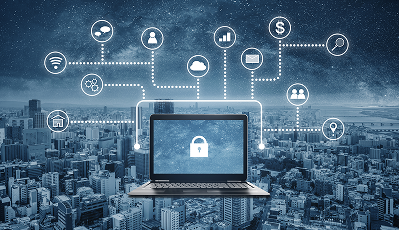
Top 10 Cybersecurity Best for Elderly, youth and businesses

Here are 10 essential cybersecurity practices** tailored for both elderly users and young people. The risks differ slightly, but these cover the most common threats each group faces today:

  1. Use Strong, Unique Passwords

Avoid simple passwords like names or birthdays. Use long combinations (12+ characters) and never reuse passwords across accounts.

A password manager like LastPass or 1Password can help.

  1. Enable Two-Factor Authentication (2FA)

Even if someone steals your password, 2FA adds a second layer (SMS code or app approval).

Use apps like Google Authenticator or Microsoft Authenticator.

  1. Be Careful with Emails & Messages (Phishing)

Do not click unknown links or download attachments from strangers.

Watch for scams pretending to be banks, government, or services like PayPal or Amazon.

  1. Install Apps Only from Trusted Sources

Download apps only from official stores like Google Play Store or Apple App Store to avoid malware.

  1. Keep Devices Updated

Regular updates fix security holes. This applies to phones, computers, and even apps.

  1. Use Antivirus & Security Software

Install trusted protection such as Norton 360 or Bitdefender to detect threats early.

  1. Avoid Public Wi-Fi for Sensitive Tasks

Public Wi-Fi can expose personal data. Avoid banking or logging into important accounts unless using a secure VPN.

  1. Protect Personal Information

Never share sensitive details (ID, passwords, banking info) online or over the phone unless you are 100% sure who you're dealing with.

  1. Watch Out for Social Media Scams

Young users are often targeted through fake profiles, while elderly users may face impersonation scams.

Platforms like Facebook and Instagram are common targets.

  1. Verify Before You Trust

If someone calls claiming to be from a bank or government, hang up and call the official number directly.

Scammers often create urgency—don’t rush decisions.

 Extra Tips by Age Group

For Elderly

 Be cautious of phone scams and tech support fraud.

Ask a trusted family member before making financial decisions online.

For Young People:

Avoid sharing location or personal details publicly.

Be careful with online gaming chats and unknown links.

Phishing Attacks: How to Stay Safe

Phishing is less about “hacking” and more about tricking you into helping the attacker. Staying safe comes down to slowing down, checking details, and using a few protective tools.

What to watch for

  • Phishing usually arrives as:
  • Emails or texts pretending to be your bank, delivery service, or a company like PayPal or Amazon
  • Messages with urgent warnings (“Your account will be locked”)
  • Links to fake login pages that look real

Practical ways to stay safe

  1. Don’t trust the message—verify it

If you get a warning or request, don’t click the link.
Instead, open your browser and go directly to the official website yourself.

  1. Check the sender carefully
  1. Pause when you feel pressure
  • Phishing relies on panic:
  • Act now!
  • “Urgent security alert!”

Legitimate companies don’t force instant decisions.

  1. Never share sensitive information
  • No real company will ask for:
  • Passwords
  • PINs
  • One-time verification codes
  • If asked, assume it’s a scam.
  1. Use Two-Factor Authentication (2FA)

Add a second layer of protection with apps like Google Authenticator or Microsoft Authenticator.

  1. Double-check website addresses
  • Before logging in:
  • Look for misspellings (paypa1.com)
  • Make sure it’s the official domain
  1. Avoid unknown links and attachments
  • Especially from:
  • Unexpected emails
  • SMS messages (smishing)
  • Social media DMs (e.g., Facebook)
  1. Keep your device protected

Use trusted security tools like Bitdefender or Norton 360 and keep everything updated.

  1. Be cautious with phone calls

Scammers may call pretending to be:

  • Banks
  • Government
  • Tech support

Hang up and call the official number yourself.

  1. Limit what you share online

The more attackers know about you, the more convincing their scams become.

 If you think you’ve been phished

Act quickly:

Change your passwords immediately

  • Enable 2FA
  • Contact your bank if needed
  • Scan your device for malware
  • Watch for suspicious activity

Simple habit that saves you

Stop → Check → Then act.
That one pause prevents most phishing attacks.

Phishing Attacks : New Tactics and How to Stay Safe

A phishing attack is an online scam in which attackers trick you into revealing sensitive information, such as passwords, banking details, or personal data, 
by posing as a trusted source (like a bank,
 delivery company, or login page.
How phishing attacks work
Phishing usually follows a simple pattern:
Lure (the trap)
You receive something that looks legitimate:
Email from “your bank”
SMS about “parcel delivery”
Fake login page for Google, Microsoft, Facebook
Social media message from a “friend”
Pressure or urgency
Attackers push you to act quickly:
Your account will be locked
Suspicious login detected
Pay immediately to avoid fees
Click or open
You are asked to:
Click a link
Open an attachment
Enter login details on a fake website
Data theft
Once you enter details:
Your password is stolen
Bank or email access is compromised
Malware may also be installed
Common types of phishing
Email phishing – fake emails from banks or services
SMS phishing (smishing) – fake text messages
Voice phishing (vishing) – phone calls pretending to be support
Fake websites – cloned login pages
Social media phishing – fake messages or ads
How to protect yourself
Check links carefully
Hover before clicking
Look for misspellings (e.g. “gooogle.com”)
Never share passwords or codes
No real company will ask for passwords or OTPs
Enable 2-factor authentication (2FA)
Adds extra security even if the password is stolen
Use security software
Antivirus with phishing protection (e.g. Norton, Bitdefender)
Verify directly
Call or visit the official website manually
Keep systems updated
Windows, browser, and apps should be up to date
How to remove or fix after a phishing attack
If you clicked or entered details:
Change your passwords immediately
Start with email, banking, and social accounts
Enable or reset 2FA
Disconnect unknown devices
Scan your device
Run a full antivirus scan
Remove any suspicious apps or extensions
Check account activity
Look for unknown logins or transactions
Contact your bank (if financial info was shared)
Freeze cards or accounts if needed
Report the attack
Email provider (Google, Microsoft, etc.)
Australian Cyber Security Centre (ACSC)
Key takeaway
Phishing doesn’t “hack” your device — it tricks YOU into handing over access.
So awareness and caution are your strongest protection.

top-10-cloud-security-challenges-and-solutions-businesses-hobby-users

Top 10 Cloud Security Challenges and Solutions for Businesses & Hobby Users (2026 Guide)

Discover the top 10 cloud security challenges for businesses and hobby users in 2026 and learn practical solutions to protect your data, files, and accounts.

 Introduction

Cloud storage is used by everyone today—from large businesses managing sensitive data to hobby users storing photos, projects, and personal files. Platforms like Google Cloud Platform, Microsoft Azure, and Amazon Web Services make storage and collaboration easy—but also introduce security risks if not properly managed. Whether you’re running a business or just using cloud tools casually, security is essential.

 Top 10 Cloud Security Challenges

 1. Data Breaches

Sensitive files can be exposed due to weak security settings or hacking attempts.

 2. Weak Passwords & Account Takeovers

Simple or reused passwords make it easy for attackers to access accounts.

 3. Misconfigured Cloud Storage

One of the biggest risks:
  • Publicly shared files
  • Open access permissions
  • Incorrect security settings

 4. Malware & Ransomware

Infected devices can upload malicious files into cloud storage.

 5. Phishing Attacks

Fake emails pretending to be from services like Dropbox or Google Drive trick users into revealing passwords.

 6. Insecure Public Wi-Fi Access

Logging into cloud accounts on public Wi-Fi increases risk of interception.

 7. Insider Threats

Employees, freelancers, or collaborators may accidentally or intentionally leak data.

 8. Lack of Monitoring

Without tracking activity, unusual logins or data access can go unnoticed.

 9. Weak API Security

APIs connect cloud systems—but can be exploited if not secured properly.

 10. Poor Backup Practices

Many users rely on a single cloud copy—risking permanent data loss.

 Solutions to Cloud Security Challenges

 1. Use Strong Passwords + Password Manager

  • Unique passwords for each account
  • Avoid reuse across platforms

 2. Enable Two-Factor Authentication (2FA)

Use:
  • Google Authenticator
  • Microsoft Authenticator

 3. Secure Cloud Settings Properly

  • Keep files private
  • Disable public sharing unless needed
  • Review permissions regularly

4. Install Security Software

Protect devices with:
  • Norton 360
  • Bitdefender

 5. Avoid Public Wi-Fi for Sensitive Work

Use secure networks or mobile data when accessing cloud accounts.

 6. Backup Your Data

  • Use multiple backups
  • Store copies offline when possible

7. Watch for Phishing Emails

Always verify:
  • Sender email
  • Links
  • Attachments

 8. Control User Access

For businesses:
  • Limit permissions
  • Remove unused accounts
  • Track user activity

 9. Keep Systems Updated

Updates fix security vulnerabilities in cloud tools and devices.

 10. Monitor Activity Logs

Check:
  • Login history
  • File access
  • Unusual activity

 Final Thoughts

Cloud security is important for everyone—not just large companies. The key is:
  • Strong access control
  • Awareness of scams
  • Regular monitoring

 Call to Action

Protect your cloud data today:
  • Secure your accounts
  • Enable 2FA
  • Use trusted cybersecurity tools
  • Stay updated with CyberVanta

Top 10 Cybersecurity Tips for Young People

Top 10 Cybersecurity Tips for Young People (2026 Guide)

Meta Description

Learn the top 10 cybersecurity tips for young people in 2026. Stay safe from hackers, scams, and identity theft with simple online safety habits.

 Introduction

Young people spend more time online than any other group—social media, gaming, streaming, and studying. That also makes them a major target for hackers and scammers. From fake giveaways to account hacks, cyber threats are everywhere—but the right habits can prevent most of them.

 Why Young People Are Targeted

Image Image Image Image Hackers target young users because:
  • Heavy use of social media
  • Tendency to click links quickly
  • Reuse of passwords
  • Less awareness of scams

 Top 10 Cybersecurity Tips for Young People

 1. Use Strong, Unique Passwords

Avoid simple passwords like:
  • 123456
  • your name + birthday
  • do not save passwords in your device
Use different passwords for every account.

 2. Enable Two-Factor Authentication (2FA)

Add an extra layer of protection using:
  • Google Authenticator
  • Microsoft Authenticator

 3. Don’t Click Suspicious Links

Fake links can:
  • Steal passwords
  • Install malware
  • Hack accounts
Always double-check before clicking.

 4. Be Careful on Social Media

Platforms like Instagram and TikTok are common targets. Avoid sharing:
  • Location
  • Personal details
  • Private information

 5. Install Security Protection

Protect your device with:
  • Bitdefender
  • Norton 360

6. Stay Safe While Gaming

Online games often include:
  • Fake rewards
  • Scam links
  • Account theft
Never share your login details.

 7. Download Apps from Trusted Sources Only

Use:
  • Google Play Store
  • Apple App Store
Avoid cracked or unofficial apps.

 8. Be Careful with Public Wi-Fi

Hackers can intercept your data on public networks. Avoid logging into important accounts.

9. Watch for Scam Messages

Common scams include:
  • Fake giveaways
  • “You’ve won a prize”
  • Account warnings
If it sounds too good to be true, it is.

 10. Keep Your Apps and Devices Updated

Updates fix security vulnerabilities. Always install updates promptly.

 What to Do If Hacked

  1. Change your passwords immediately
  2. Enable 2FA
  3. Log out of all devices
  4. Scan your device for malware
  5. Report suspicious activity

 Final Thoughts

Cybersecurity is about smart habits. For young people:
  • Think before clicking
  • Protect your accounts
  • Stay aware of scams

Call to Action

Stay safe online:
  • Use strong passwords
  • Enable 2FA
  • Install trusted security tools
  • Follow CyberVanta for updates

How to Stay Safe from Phishing Attacks (2026 Guide)

Phishing attacks are one of the most common and dangerous cyber threats today. Every year, millions of people lose money, personal data, and access to their accounts because of simple but convincing scams.

What Is a Phishing Attack?

A phishing attack is when a scammer pretends to be a trusted company or person to trick you into:

  • Sharing passwords
  • Revealing bank details
  • Clicking malicious links
  • Downloading harmful files

These attacks often appear to come from companies like PayPal or Amazon, making them look legitimate.

 Common Types of Phishing Attacks

 Email Phishing

Fake emails asking you to “verify your account” or “reset your password.”

SMS Phishing (Smishing)

Text messages with links like:

“Your package is delayed—click here to reschedule.”

Voice Phishing (Vishing)

Scammers call pretending to be:

  • Banks
  • Government agencies
  • Tech support

 Spear Phishing

Targeted attacks using personal information to appear more convincing.

Warning Signs of a Phishing Scam

Watch for these red flags:

  • Urgent or threatening language
  • Suspicious links or attachments
  • Misspelled email addresses
  • Requests for sensitive information
  • Messages that feel “off” or unexpected

 How to Protect Yourself from Phishing

1. Don’t Click Unknown Links

Always go directly to the official website instead of clicking links in emails or messages.

2. Verify the Sender

Check the actual email address—not just the name.

3. Enable Two-Factor Authentication (2FA)

Use apps like Google Authenticator or Microsoft Authenticator for added security.

4. Use Strong Passwords

Avoid using the same password across multiple accounts.

5. Keep Your Devices Updated

Updates fix security vulnerabilities that attackers exploit.

6. Install Trusted Security Software

Protect your devices with reliable tools like:

  • Bitdefender
  • Norton 360

These can block malicious links and detect threats in real time.

7. Be Careful on Social Media

Scammers often use platforms like Facebook to send fake links or impersonate people you know.

8. Never Share Sensitive Information

No legitimate company will ask for:

  • Passwords
  • PINs
  • Verification codes

Special Tips for Families & Elderly Users

  • Always double-check before clicking links
  • Ask a trusted family member if unsure
  • Be cautious of phone calls asking for money or access
  • Avoid rushing decisions

 What to Do If You Clicked a Phishing Link

Act quickly:

  1. Change your passwords immediately
  2. Enable 2FA on all accounts
  3. Contact your bank if financial info was shared
  4. Run a full antivirus scan
  5. Monitor your accounts for unusual activity

Best Tools to Stay Protected

For complete protection, consider:

  • Norton 360 – All-in-one security (VPN, antivirus, identity protection)
  • Bitdefender – Advanced threat detection

Final Thoughts

Phishing attacks rely on urgency, fear, and trust. The best defense is simple:

 Stop. Check. Think before you click.

A few extra seconds can save you from serious financial and personal loss.

 Call to Action

Want to stay protected?

 Start using trusted cybersecurity tools today
 Share this guide with your family and friends
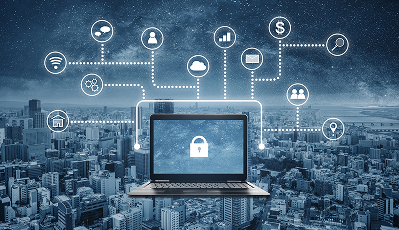
Top 10 Cybersecurity Best for Elderly, youth and businesses

Here are 10 essential cybersecurity practices** tailored for both elderly users and young people. The risks differ slightly, but these cover the most common threats each group faces today:

  1. Use Strong, Unique Passwords

Avoid simple passwords like names or birthdays. Use long combinations (12+ characters) and never reuse passwords across accounts.

A password manager like LastPass or 1Password can help.

  1. Enable Two-Factor Authentication (2FA)

Even if someone steals your password, 2FA adds a second layer (SMS code or app approval).

Use apps like Google Authenticator or Microsoft Authenticator.

  1. Be Careful with Emails & Messages (Phishing)

Do not click unknown links or download attachments from strangers.

Watch for scams pretending to be banks, government, or services like PayPal or Amazon.

  1. Install Apps Only from Trusted Sources

Download apps only from official stores like Google Play Store or Apple App Store to avoid malware.

  1. Keep Devices Updated

Regular updates fix security holes. This applies to phones, computers, and even apps.

  1. Use Antivirus & Security Software

Install trusted protection such as Norton 360 or Bitdefender to detect threats early.

  1. Avoid Public Wi-Fi for Sensitive Tasks

Public Wi-Fi can expose personal data. Avoid banking or logging into important accounts unless using a secure VPN.

  1. Protect Personal Information

Never share sensitive details (ID, passwords, banking info) online or over the phone unless you are 100% sure who you're dealing with.

  1. Watch Out for Social Media Scams

Young users are often targeted through fake profiles, while elderly users may face impersonation scams.

Platforms like Facebook and Instagram are common targets.

  1. Verify Before You Trust

If someone calls claiming to be from a bank or government, hang up and call the official number directly.

Scammers often create urgency—don’t rush decisions.

 Extra Tips by Age Group

For Elderly

 Be cautious of phone scams and tech support fraud.

Ask a trusted family member before making financial decisions online.

For Young People:

Avoid sharing location or personal details publicly.

Be careful with online gaming chats and unknown links.

Phishing Attacks: How to Stay Safe

Phishing is less about “hacking” and more about tricking you into helping the attacker. Staying safe comes down to slowing down, checking details, and using a few protective tools.

What to watch for

  • Phishing usually arrives as:
  • Emails or texts pretending to be your bank, delivery service, or a company like PayPal or Amazon
  • Messages with urgent warnings (“Your account will be locked”)
  • Links to fake login pages that look real

Practical ways to stay safe

  1. Don’t trust the message—verify it

If you get a warning or request, don’t click the link.
Instead, open your browser and go directly to the official website yourself.

  1. Check the sender carefully
  1. Pause when you feel pressure
  • Phishing relies on panic:
  • Act now!
  • “Urgent security alert!”

Legitimate companies don’t force instant decisions.

  1. Never share sensitive information
  • No real company will ask for:
  • Passwords
  • PINs
  • One-time verification codes
  • If asked, assume it’s a scam.
  1. Use Two-Factor Authentication (2FA)

Add a second layer of protection with apps like Google Authenticator or Microsoft Authenticator.

  1. Double-check website addresses
  • Before logging in:
  • Look for misspellings (paypa1.com)
  • Make sure it’s the official domain
  1. Avoid unknown links and attachments
  • Especially from:
  • Unexpected emails
  • SMS messages (smishing)
  • Social media DMs (e.g., Facebook)
  1. Keep your device protected

Use trusted security tools like Bitdefender or Norton 360 and keep everything updated.

  1. Be cautious with phone calls

Scammers may call pretending to be:

  • Banks
  • Government
  • Tech support

Hang up and call the official number yourself.

  1. Limit what you share online

The more attackers know about you, the more convincing their scams become.

 If you think you’ve been phished

Act quickly:

Change your passwords immediately

  • Enable 2FA
  • Contact your bank if needed
  • Scan your device for malware
  • Watch for suspicious activity

Simple habit that saves you

Stop → Check → Then act.
That one pause prevents most phishing attacks.

Phishing Attacks : New Tactics and How to Stay Safe

A phishing attack is an online scam in which attackers trick you into revealing sensitive information, such as passwords, banking details, or personal data, 
by posing as a trusted source (like a bank,
 delivery company, or login page.
How phishing attacks work
Phishing usually follows a simple pattern:
Lure (the trap)
You receive something that looks legitimate:
Email from “your bank”
SMS about “parcel delivery”
Fake login page for Google, Microsoft, Facebook
Social media message from a “friend”
Pressure or urgency
Attackers push you to act quickly:
Your account will be locked
Suspicious login detected
Pay immediately to avoid fees
Click or open
You are asked to:
Click a link
Open an attachment
Enter login details on a fake website
Data theft
Once you enter details:
Your password is stolen
Bank or email access is compromised
Malware may also be installed
Common types of phishing
Email phishing – fake emails from banks or services
SMS phishing (smishing) – fake text messages
Voice phishing (vishing) – phone calls pretending to be support
Fake websites – cloned login pages
Social media phishing – fake messages or ads
How to protect yourself
Check links carefully
Hover before clicking
Look for misspellings (e.g. “gooogle.com”)
Never share passwords or codes
No real company will ask for passwords or OTPs
Enable 2-factor authentication (2FA)
Adds extra security even if the password is stolen
Use security software
Antivirus with phishing protection (e.g. Norton, Bitdefender)
Verify directly
Call or visit the official website manually
Keep systems updated
Windows, browser, and apps should be up to date
How to remove or fix after a phishing attack
If you clicked or entered details:
Change your passwords immediately
Start with email, banking, and social accounts
Enable or reset 2FA
Disconnect unknown devices
Scan your device
Run a full antivirus scan
Remove any suspicious apps or extensions
Check account activity
Look for unknown logins or transactions
Contact your bank (if financial info was shared)
Freeze cards or accounts if needed
Report the attack
Email provider (Google, Microsoft, etc.)
Australian Cyber Security Centre (ACSC)
Key takeaway
Phishing doesn’t “hack” your device — it tricks YOU into handing over access.
So awareness and caution are your strongest protection.

top-10-cloud-security-challenges-and-solutions-businesses-hobby-users

Top 10 Cloud Security Challenges and Solutions for Businesses & Hobby Users (2026 Guide)

Discover the top 10 cloud security challenges for businesses and hobby users in 2026 and learn practical solutions to protect your data, files, and accounts.

 Introduction

Cloud storage is used by everyone today—from large businesses managing sensitive data to hobby users storing photos, projects, and personal files. Platforms like Google Cloud Platform, Microsoft Azure, and Amazon Web Services make storage and collaboration easy—but also introduce security risks if not properly managed. Whether you’re running a business or just using cloud tools casually, security is essential.

 Top 10 Cloud Security Challenges

 1. Data Breaches

Sensitive files can be exposed due to weak security settings or hacking attempts.

 2. Weak Passwords & Account Takeovers

Simple or reused passwords make it easy for attackers to access accounts.

 3. Misconfigured Cloud Storage

One of the biggest risks:
  • Publicly shared files
  • Open access permissions
  • Incorrect security settings

 4. Malware & Ransomware

Infected devices can upload malicious files into cloud storage.

 5. Phishing Attacks

Fake emails pretending to be from services like Dropbox or Google Drive trick users into revealing passwords.

 6. Insecure Public Wi-Fi Access

Logging into cloud accounts on public Wi-Fi increases risk of interception.

 7. Insider Threats

Employees, freelancers, or collaborators may accidentally or intentionally leak data.

 8. Lack of Monitoring

Without tracking activity, unusual logins or data access can go unnoticed.

 9. Weak API Security

APIs connect cloud systems—but can be exploited if not secured properly.

 10. Poor Backup Practices

Many users rely on a single cloud copy—risking permanent data loss.

 Solutions to Cloud Security Challenges

 1. Use Strong Passwords + Password Manager

  • Unique passwords for each account
  • Avoid reuse across platforms

 2. Enable Two-Factor Authentication (2FA)

Use:
  • Google Authenticator
  • Microsoft Authenticator

 3. Secure Cloud Settings Properly

  • Keep files private
  • Disable public sharing unless needed
  • Review permissions regularly

4. Install Security Software

Protect devices with:
  • Norton 360
  • Bitdefender

 5. Avoid Public Wi-Fi for Sensitive Work

Use secure networks or mobile data when accessing cloud accounts.

 6. Backup Your Data

  • Use multiple backups
  • Store copies offline when possible

7. Watch for Phishing Emails

Always verify:
  • Sender email
  • Links
  • Attachments

 8. Control User Access

For businesses:
  • Limit permissions
  • Remove unused accounts
  • Track user activity

 9. Keep Systems Updated

Updates fix security vulnerabilities in cloud tools and devices.

 10. Monitor Activity Logs

Check:
  • Login history
  • File access
  • Unusual activity

 Final Thoughts

Cloud security is important for everyone—not just large companies. The key is:
  • Strong access control
  • Awareness of scams
  • Regular monitoring

 Call to Action

Protect your cloud data today:
  • Secure your accounts
  • Enable 2FA
  • Use trusted cybersecurity tools
  • Stay updated with CyberVanta

Top 10 Cybersecurity Tips for Young People

Top 10 Cybersecurity Tips for Young People (2026 Guide)

Meta Description

Learn the top 10 cybersecurity tips for young people in 2026. Stay safe from hackers, scams, and identity theft with simple online safety habits.

 Introduction

Young people spend more time online than any other group—social media, gaming, streaming, and studying. That also makes them a major target for hackers and scammers. From fake giveaways to account hacks, cyber threats are everywhere—but the right habits can prevent most of them.

 Why Young People Are Targeted

Image Image Image Image Hackers target young users because:
  • Heavy use of social media
  • Tendency to click links quickly
  • Reuse of passwords
  • Less awareness of scams

 Top 10 Cybersecurity Tips for Young People

 1. Use Strong, Unique Passwords

Avoid simple passwords like:
  • 123456
  • your name + birthday
  • do not save passwords in your device
Use different passwords for every account.

 2. Enable Two-Factor Authentication (2FA)

Add an extra layer of protection using:
  • Google Authenticator
  • Microsoft Authenticator

 3. Don’t Click Suspicious Links

Fake links can:
  • Steal passwords
  • Install malware
  • Hack accounts
Always double-check before clicking.

 4. Be Careful on Social Media

Platforms like Instagram and TikTok are common targets. Avoid sharing:
  • Location
  • Personal details
  • Private information

 5. Install Security Protection

Protect your device with:
  • Bitdefender
  • Norton 360

6. Stay Safe While Gaming

Online games often include:
  • Fake rewards
  • Scam links
  • Account theft
Never share your login details.

 7. Download Apps from Trusted Sources Only

Use:
  • Google Play Store
  • Apple App Store
Avoid cracked or unofficial apps.

 8. Be Careful with Public Wi-Fi

Hackers can intercept your data on public networks. Avoid logging into important accounts.

9. Watch for Scam Messages

Common scams include:
  • Fake giveaways
  • “You’ve won a prize”
  • Account warnings
If it sounds too good to be true, it is.

 10. Keep Your Apps and Devices Updated

Updates fix security vulnerabilities. Always install updates promptly.

 What to Do If Hacked

  1. Change your passwords immediately
  2. Enable 2FA
  3. Log out of all devices
  4. Scan your device for malware
  5. Report suspicious activity

 Final Thoughts

Cybersecurity is about smart habits. For young people:
  • Think before clicking
  • Protect your accounts
  • Stay aware of scams

Call to Action

Stay safe online:
  • Use strong passwords
  • Enable 2FA
  • Install trusted security tools
  • Follow CyberVanta for updates

How to Stay Safe from Phishing Attacks (2026 Guide)

Phishing attacks are one of the most common and dangerous cyber threats today. Every year, millions of people lose money, personal data, and access to their accounts because of simple but convincing scams.

What Is a Phishing Attack?

A phishing attack is when a scammer pretends to be a trusted company or person to trick you into:

  • Sharing passwords
  • Revealing bank details
  • Clicking malicious links
  • Downloading harmful files

These attacks often appear to come from companies like PayPal or Amazon, making them look legitimate.

 Common Types of Phishing Attacks

 Email Phishing

Fake emails asking you to “verify your account” or “reset your password.”

SMS Phishing (Smishing)

Text messages with links like:

“Your package is delayed—click here to reschedule.”

Voice Phishing (Vishing)

Scammers call pretending to be:

  • Banks
  • Government agencies
  • Tech support

 Spear Phishing

Targeted attacks using personal information to appear more convincing.

Warning Signs of a Phishing Scam

Watch for these red flags:

  • Urgent or threatening language
  • Suspicious links or attachments
  • Misspelled email addresses
  • Requests for sensitive information
  • Messages that feel “off” or unexpected

 How to Protect Yourself from Phishing

1. Don’t Click Unknown Links

Always go directly to the official website instead of clicking links in emails or messages.

2. Verify the Sender

Check the actual email address—not just the name.

3. Enable Two-Factor Authentication (2FA)

Use apps like Google Authenticator or Microsoft Authenticator for added security.

4. Use Strong Passwords

Avoid using the same password across multiple accounts.

5. Keep Your Devices Updated

Updates fix security vulnerabilities that attackers exploit.

6. Install Trusted Security Software

Protect your devices with reliable tools like:

  • Bitdefender
  • Norton 360

These can block malicious links and detect threats in real time.

7. Be Careful on Social Media

Scammers often use platforms like Facebook to send fake links or impersonate people you know.

8. Never Share Sensitive Information

No legitimate company will ask for:

  • Passwords
  • PINs
  • Verification codes

Special Tips for Families & Elderly Users

  • Always double-check before clicking links
  • Ask a trusted family member if unsure
  • Be cautious of phone calls asking for money or access
  • Avoid rushing decisions

 What to Do If You Clicked a Phishing Link

Act quickly:

  1. Change your passwords immediately
  2. Enable 2FA on all accounts
  3. Contact your bank if financial info was shared
  4. Run a full antivirus scan
  5. Monitor your accounts for unusual activity

Best Tools to Stay Protected

For complete protection, consider:

  • Norton 360 – All-in-one security (VPN, antivirus, identity protection)
  • Bitdefender – Advanced threat detection

Final Thoughts

Phishing attacks rely on urgency, fear, and trust. The best defense is simple:

 Stop. Check. Think before you click.

A few extra seconds can save you from serious financial and personal loss.

 Call to Action

Want to stay protected?

 Start using trusted cybersecurity tools today
 Share this guide with your family and friends
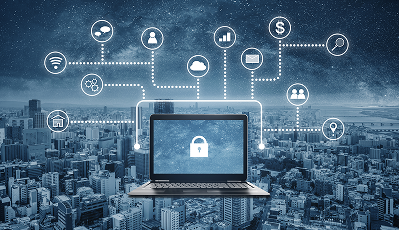
Top 10 Cybersecurity Best for Elderly, youth and businesses

Here are 10 essential cybersecurity practices** tailored for both elderly users and young people. The risks differ slightly, but these cover the most common threats each group faces today:

  1. Use Strong, Unique Passwords

Avoid simple passwords like names or birthdays. Use long combinations (12+ characters) and never reuse passwords across accounts.

A password manager like LastPass or 1Password can help.

  1. Enable Two-Factor Authentication (2FA)

Even if someone steals your password, 2FA adds a second layer (SMS code or app approval).

Use apps like Google Authenticator or Microsoft Authenticator.

  1. Be Careful with Emails & Messages (Phishing)

Do not click unknown links or download attachments from strangers.

Watch for scams pretending to be banks, government, or services like PayPal or Amazon.

  1. Install Apps Only from Trusted Sources

Download apps only from official stores like Google Play Store or Apple App Store to avoid malware.

  1. Keep Devices Updated

Regular updates fix security holes. This applies to phones, computers, and even apps.

  1. Use Antivirus & Security Software

Install trusted protection such as Norton 360 or Bitdefender to detect threats early.

  1. Avoid Public Wi-Fi for Sensitive Tasks

Public Wi-Fi can expose personal data. Avoid banking or logging into important accounts unless using a secure VPN.

  1. Protect Personal Information

Never share sensitive details (ID, passwords, banking info) online or over the phone unless you are 100% sure who you're dealing with.

  1. Watch Out for Social Media Scams

Young users are often targeted through fake profiles, while elderly users may face impersonation scams.

Platforms like Facebook and Instagram are common targets.

  1. Verify Before You Trust

If someone calls claiming to be from a bank or government, hang up and call the official number directly.

Scammers often create urgency—don’t rush decisions.

 Extra Tips by Age Group

For Elderly

 Be cautious of phone scams and tech support fraud.

Ask a trusted family member before making financial decisions online.

For Young People:

Avoid sharing location or personal details publicly.

Be careful with online gaming chats and unknown links.

Phishing Attacks: How to Stay Safe

Phishing is less about “hacking” and more about tricking you into helping the attacker. Staying safe comes down to slowing down, checking details, and using a few protective tools.

What to watch for

  • Phishing usually arrives as:
  • Emails or texts pretending to be your bank, delivery service, or a company like PayPal or Amazon
  • Messages with urgent warnings (“Your account will be locked”)
  • Links to fake login pages that look real

Practical ways to stay safe

  1. Don’t trust the message—verify it

If you get a warning or request, don’t click the link.
Instead, open your browser and go directly to the official website yourself.

  1. Check the sender carefully
  1. Pause when you feel pressure
  • Phishing relies on panic:
  • Act now!
  • “Urgent security alert!”

Legitimate companies don’t force instant decisions.

  1. Never share sensitive information
  • No real company will ask for:
  • Passwords
  • PINs
  • One-time verification codes
  • If asked, assume it’s a scam.
  1. Use Two-Factor Authentication (2FA)

Add a second layer of protection with apps like Google Authenticator or Microsoft Authenticator.

  1. Double-check website addresses
  • Before logging in:
  • Look for misspellings (paypa1.com)
  • Make sure it’s the official domain
  1. Avoid unknown links and attachments
  • Especially from:
  • Unexpected emails
  • SMS messages (smishing)
  • Social media DMs (e.g., Facebook)
  1. Keep your device protected

Use trusted security tools like Bitdefender or Norton 360 and keep everything updated.

  1. Be cautious with phone calls

Scammers may call pretending to be:

  • Banks
  • Government
  • Tech support

Hang up and call the official number yourself.

  1. Limit what you share online

The more attackers know about you, the more convincing their scams become.

 If you think you’ve been phished

Act quickly:

Change your passwords immediately

  • Enable 2FA
  • Contact your bank if needed
  • Scan your device for malware
  • Watch for suspicious activity

Simple habit that saves you

Stop → Check → Then act.
That one pause prevents most phishing attacks.

Phishing Attacks : New Tactics and How to Stay Safe

A phishing attack is an online scam in which attackers trick you into revealing sensitive information, such as passwords, banking details, or personal data, 
by posing as a trusted source (like a bank,
 delivery company, or login page.
How phishing attacks work
Phishing usually follows a simple pattern:
Lure (the trap)
You receive something that looks legitimate:
Email from “your bank”
SMS about “parcel delivery”
Fake login page for Google, Microsoft, Facebook
Social media message from a “friend”
Pressure or urgency
Attackers push you to act quickly:
Your account will be locked
Suspicious login detected
Pay immediately to avoid fees
Click or open
You are asked to:
Click a link
Open an attachment
Enter login details on a fake website
Data theft
Once you enter details:
Your password is stolen
Bank or email access is compromised
Malware may also be installed
Common types of phishing
Email phishing – fake emails from banks or services
SMS phishing (smishing) – fake text messages
Voice phishing (vishing) – phone calls pretending to be support
Fake websites – cloned login pages
Social media phishing – fake messages or ads
How to protect yourself
Check links carefully
Hover before clicking
Look for misspellings (e.g. “gooogle.com”)
Never share passwords or codes
No real company will ask for passwords or OTPs
Enable 2-factor authentication (2FA)
Adds extra security even if the password is stolen
Use security software
Antivirus with phishing protection (e.g. Norton, Bitdefender)
Verify directly
Call or visit the official website manually
Keep systems updated
Windows, browser, and apps should be up to date
How to remove or fix after a phishing attack
If you clicked or entered details:
Change your passwords immediately
Start with email, banking, and social accounts
Enable or reset 2FA
Disconnect unknown devices
Scan your device
Run a full antivirus scan
Remove any suspicious apps or extensions
Check account activity
Look for unknown logins or transactions
Contact your bank (if financial info was shared)
Freeze cards or accounts if needed
Report the attack
Email provider (Google, Microsoft, etc.)
Australian Cyber Security Centre (ACSC)
Key takeaway
Phishing doesn’t “hack” your device — it tricks YOU into handing over access.
So awareness and caution are your strongest protection.

top-10-cloud-security-challenges-and-solutions-businesses-hobby-users

Top 10 Cloud Security Challenges and Solutions for Businesses & Hobby Users (2026 Guide)

Discover the top 10 cloud security challenges for businesses and hobby users in 2026 and learn practical solutions to protect your data, files, and accounts.

 Introduction

Cloud storage is used by everyone today—from large businesses managing sensitive data to hobby users storing photos, projects, and personal files. Platforms like Google Cloud Platform, Microsoft Azure, and Amazon Web Services make storage and collaboration easy—but also introduce security risks if not properly managed. Whether you’re running a business or just using cloud tools casually, security is essential.

 Top 10 Cloud Security Challenges

 1. Data Breaches

Sensitive files can be exposed due to weak security settings or hacking attempts.

 2. Weak Passwords & Account Takeovers

Simple or reused passwords make it easy for attackers to access accounts.

 3. Misconfigured Cloud Storage

One of the biggest risks:
  • Publicly shared files
  • Open access permissions
  • Incorrect security settings

 4. Malware & Ransomware

Infected devices can upload malicious files into cloud storage.

 5. Phishing Attacks

Fake emails pretending to be from services like Dropbox or Google Drive trick users into revealing passwords.

 6. Insecure Public Wi-Fi Access

Logging into cloud accounts on public Wi-Fi increases risk of interception.

 7. Insider Threats

Employees, freelancers, or collaborators may accidentally or intentionally leak data.

 8. Lack of Monitoring

Without tracking activity, unusual logins or data access can go unnoticed.

 9. Weak API Security

APIs connect cloud systems—but can be exploited if not secured properly.

 10. Poor Backup Practices

Many users rely on a single cloud copy—risking permanent data loss.

 Solutions to Cloud Security Challenges

 1. Use Strong Passwords + Password Manager

  • Unique passwords for each account
  • Avoid reuse across platforms

 2. Enable Two-Factor Authentication (2FA)

Use:
  • Google Authenticator
  • Microsoft Authenticator

 3. Secure Cloud Settings Properly

  • Keep files private
  • Disable public sharing unless needed
  • Review permissions regularly

4. Install Security Software

Protect devices with:
  • Norton 360
  • Bitdefender

 5. Avoid Public Wi-Fi for Sensitive Work

Use secure networks or mobile data when accessing cloud accounts.

 6. Backup Your Data

  • Use multiple backups
  • Store copies offline when possible

7. Watch for Phishing Emails

Always verify:
  • Sender email
  • Links
  • Attachments

 8. Control User Access

For businesses:
  • Limit permissions
  • Remove unused accounts
  • Track user activity

 9. Keep Systems Updated

Updates fix security vulnerabilities in cloud tools and devices.

 10. Monitor Activity Logs

Check:
  • Login history
  • File access
  • Unusual activity

 Final Thoughts

Cloud security is important for everyone—not just large companies. The key is:
  • Strong access control
  • Awareness of scams
  • Regular monitoring

 Call to Action

Protect your cloud data today:
  • Secure your accounts
  • Enable 2FA
  • Use trusted cybersecurity tools
  • Stay updated with CyberVanta

Top 10 Cybersecurity Tips for Young People

Top 10 Cybersecurity Tips for Young People (2026 Guide)

Meta Description

Learn the top 10 cybersecurity tips for young people in 2026. Stay safe from hackers, scams, and identity theft with simple online safety habits.

 Introduction

Young people spend more time online than any other group—social media, gaming, streaming, and studying. That also makes them a major target for hackers and scammers. From fake giveaways to account hacks, cyber threats are everywhere—but the right habits can prevent most of them.

 Why Young People Are Targeted

Image Image Image Image Hackers target young users because:
  • Heavy use of social media
  • Tendency to click links quickly
  • Reuse of passwords
  • Less awareness of scams

 Top 10 Cybersecurity Tips for Young People

 1. Use Strong, Unique Passwords

Avoid simple passwords like:
  • 123456
  • your name + birthday
  • do not save passwords in your device
Use different passwords for every account.

 2. Enable Two-Factor Authentication (2FA)

Add an extra layer of protection using:
  • Google Authenticator
  • Microsoft Authenticator

 3. Don’t Click Suspicious Links

Fake links can:
  • Steal passwords
  • Install malware
  • Hack accounts
Always double-check before clicking.

 4. Be Careful on Social Media

Platforms like Instagram and TikTok are common targets. Avoid sharing:
  • Location
  • Personal details
  • Private information

 5. Install Security Protection

Protect your device with:
  • Bitdefender
  • Norton 360

6. Stay Safe While Gaming

Online games often include:
  • Fake rewards
  • Scam links
  • Account theft
Never share your login details.

 7. Download Apps from Trusted Sources Only

Use:
  • Google Play Store
  • Apple App Store
Avoid cracked or unofficial apps.

 8. Be Careful with Public Wi-Fi

Hackers can intercept your data on public networks. Avoid logging into important accounts.

9. Watch for Scam Messages

Common scams include:
  • Fake giveaways
  • “You’ve won a prize”
  • Account warnings
If it sounds too good to be true, it is.

 10. Keep Your Apps and Devices Updated

Updates fix security vulnerabilities. Always install updates promptly.

 What to Do If Hacked

  1. Change your passwords immediately
  2. Enable 2FA
  3. Log out of all devices
  4. Scan your device for malware
  5. Report suspicious activity

 Final Thoughts

Cybersecurity is about smart habits. For young people:
  • Think before clicking
  • Protect your accounts
  • Stay aware of scams

Call to Action

Stay safe online:
  • Use strong passwords
  • Enable 2FA
  • Install trusted security tools
  • Follow CyberVanta for updates

How to Stay Safe from Phishing Attacks (2026 Guide)

Phishing attacks are one of the most common and dangerous cyber threats today. Every year, millions of people lose money, personal data, and access to their accounts because of simple but convincing scams.

What Is a Phishing Attack?

A phishing attack is when a scammer pretends to be a trusted company or person to trick you into:

  • Sharing passwords
  • Revealing bank details
  • Clicking malicious links
  • Downloading harmful files

These attacks often appear to come from companies like PayPal or Amazon, making them look legitimate.

 Common Types of Phishing Attacks

 Email Phishing

Fake emails asking you to “verify your account” or “reset your password.”

SMS Phishing (Smishing)

Text messages with links like:

“Your package is delayed—click here to reschedule.”

Voice Phishing (Vishing)

Scammers call pretending to be:

  • Banks
  • Government agencies
  • Tech support

 Spear Phishing

Targeted attacks using personal information to appear more convincing.

Warning Signs of a Phishing Scam

Watch for these red flags:

  • Urgent or threatening language
  • Suspicious links or attachments
  • Misspelled email addresses
  • Requests for sensitive information
  • Messages that feel “off” or unexpected

 How to Protect Yourself from Phishing

1. Don’t Click Unknown Links

Always go directly to the official website instead of clicking links in emails or messages.

2. Verify the Sender

Check the actual email address—not just the name.

3. Enable Two-Factor Authentication (2FA)

Use apps like Google Authenticator or Microsoft Authenticator for added security.

4. Use Strong Passwords

Avoid using the same password across multiple accounts.

5. Keep Your Devices Updated

Updates fix security vulnerabilities that attackers exploit.

6. Install Trusted Security Software

Protect your devices with reliable tools like:

  • Bitdefender
  • Norton 360

These can block malicious links and detect threats in real time.

7. Be Careful on Social Media

Scammers often use platforms like Facebook to send fake links or impersonate people you know.

8. Never Share Sensitive Information

No legitimate company will ask for:

  • Passwords
  • PINs
  • Verification codes

Special Tips for Families & Elderly Users

  • Always double-check before clicking links
  • Ask a trusted family member if unsure
  • Be cautious of phone calls asking for money or access
  • Avoid rushing decisions

 What to Do If You Clicked a Phishing Link

Act quickly:

  1. Change your passwords immediately
  2. Enable 2FA on all accounts
  3. Contact your bank if financial info was shared
  4. Run a full antivirus scan
  5. Monitor your accounts for unusual activity

Best Tools to Stay Protected

For complete protection, consider:

  • Norton 360 – All-in-one security (VPN, antivirus, identity protection)
  • Bitdefender – Advanced threat detection

Final Thoughts

Phishing attacks rely on urgency, fear, and trust. The best defense is simple:

 Stop. Check. Think before you click.

A few extra seconds can save you from serious financial and personal loss.

 Call to Action

Want to stay protected?

 Start using trusted cybersecurity tools today
 Share this guide with your family and friends
Top 10 Cybersecurity Best for Elderly, youth and businesses

Here are 10 essential cybersecurity practices** tailored for both elderly users and young people. The risks differ slightly, but these cover the most common threats each group faces today:

  1. Use Strong, Unique Passwords

Avoid simple passwords like names or birthdays. Use long combinations (12+ characters) and never reuse passwords across accounts.

A password manager like LastPass or 1Password can help.

  1. Enable Two-Factor Authentication (2FA)

Even if someone steals your password, 2FA adds a second layer (SMS code or app approval).

Use apps like Google Authenticator or Microsoft Authenticator.

  1. Be Careful with Emails & Messages (Phishing)

Do not click unknown links or download attachments from strangers.

Watch for scams pretending to be banks, government, or services like PayPal or Amazon.

  1. Install Apps Only from Trusted Sources

Download apps only from official stores like Google Play Store or Apple App Store to avoid malware.

  1. Keep Devices Updated

Regular updates fix security holes. This applies to phones, computers, and even apps.

  1. Use Antivirus & Security Software

Install trusted protection such as Norton 360 or Bitdefender to detect threats early.

  1. Avoid Public Wi-Fi for Sensitive Tasks

Public Wi-Fi can expose personal data. Avoid banking or logging into important accounts unless using a secure VPN.

  1. Protect Personal Information

Never share sensitive details (ID, passwords, banking info) online or over the phone unless you are 100% sure who you're dealing with.

  1. Watch Out for Social Media Scams

Young users are often targeted through fake profiles, while elderly users may face impersonation scams.

Platforms like Facebook and Instagram are common targets.

  1. Verify Before You Trust

If someone calls claiming to be from a bank or government, hang up and call the official number directly.

Scammers often create urgency—don’t rush decisions.

 Extra Tips by Age Group

For Elderly

 Be cautious of phone scams and tech support fraud.

Ask a trusted family member before making financial decisions online.

For Young People:

Avoid sharing location or personal details publicly.

Be careful with online gaming chats and unknown links.

Phishing Attacks: How to Stay Safe

Phishing is less about “hacking” and more about tricking you into helping the attacker. Staying safe comes down to slowing down, checking details, and using a few protective tools.

What to watch for

  • Phishing usually arrives as:
  • Emails or texts pretending to be your bank, delivery service, or a company like PayPal or Amazon
  • Messages with urgent warnings (“Your account will be locked”)
  • Links to fake login pages that look real

Practical ways to stay safe

  1. Don’t trust the message—verify it

If you get a warning or request, don’t click the link.
Instead, open your browser and go directly to the official website yourself.

  1. Check the sender carefully
  1. Pause when you feel pressure
  • Phishing relies on panic:
  • Act now!
  • “Urgent security alert!”

Legitimate companies don’t force instant decisions.

  1. Never share sensitive information
  • No real company will ask for:
  • Passwords
  • PINs
  • One-time verification codes
  • If asked, assume it’s a scam.
  1. Use Two-Factor Authentication (2FA)

Add a second layer of protection with apps like Google Authenticator or Microsoft Authenticator.

  1. Double-check website addresses
  • Before logging in:
  • Look for misspellings (paypa1.com)
  • Make sure it’s the official domain
  1. Avoid unknown links and attachments
  • Especially from:
  • Unexpected emails
  • SMS messages (smishing)
  • Social media DMs (e.g., Facebook)
  1. Keep your device protected

Use trusted security tools like Bitdefender or Norton 360 and keep everything updated.

  1. Be cautious with phone calls

Scammers may call pretending to be:

  • Banks
  • Government
  • Tech support

Hang up and call the official number yourself.

  1. Limit what you share online

The more attackers know about you, the more convincing their scams become.

 If you think you’ve been phished

Act quickly:

Change your passwords immediately

  • Enable 2FA
  • Contact your bank if needed
  • Scan your device for malware
  • Watch for suspicious activity

Simple habit that saves you

Stop → Check → Then act.
That one pause prevents most phishing attacks.

Phishing Attacks : New Tactics and How to Stay Safe

A phishing attack is an online scam in which attackers trick you into revealing sensitive information, such as passwords, banking details, or personal data, 
by posing as a trusted source (like a bank,
 delivery company, or login page.
How phishing attacks work
Phishing usually follows a simple pattern:
Lure (the trap)
You receive something that looks legitimate:
Email from “your bank”
SMS about “parcel delivery”
Fake login page for Google, Microsoft, Facebook
Social media message from a “friend”
Pressure or urgency
Attackers push you to act quickly:
Your account will be locked
Suspicious login detected
Pay immediately to avoid fees
Click or open
You are asked to:
Click a link
Open an attachment
Enter login details on a fake website
Data theft
Once you enter details:
Your password is stolen
Bank or email access is compromised
Malware may also be installed
Common types of phishing
Email phishing – fake emails from banks or services
SMS phishing (smishing) – fake text messages
Voice phishing (vishing) – phone calls pretending to be support
Fake websites – cloned login pages
Social media phishing – fake messages or ads
How to protect yourself
Check links carefully
Hover before clicking
Look for misspellings (e.g. “gooogle.com”)
Never share passwords or codes
No real company will ask for passwords or OTPs
Enable 2-factor authentication (2FA)
Adds extra security even if the password is stolen
Use security software
Antivirus with phishing protection (e.g. Norton, Bitdefender)
Verify directly
Call or visit the official website manually
Keep systems updated
Windows, browser, and apps should be up to date
How to remove or fix after a phishing attack
If you clicked or entered details:
Change your passwords immediately
Start with email, banking, and social accounts
Enable or reset 2FA
Disconnect unknown devices
Scan your device
Run a full antivirus scan
Remove any suspicious apps or extensions
Check account activity
Look for unknown logins or transactions
Contact your bank (if financial info was shared)
Freeze cards or accounts if needed
Report the attack
Email provider (Google, Microsoft, etc.)
Australian Cyber Security Centre (ACSC)
Key takeaway
Phishing doesn’t “hack” your device — it tricks YOU into handing over access.
So awareness and caution are your strongest protection.

top-10-cloud-security-challenges-and-solutions-businesses-hobby-users

Top 10 Cloud Security Challenges and Solutions for Businesses & Hobby Users (2026 Guide)

Discover the top 10 cloud security challenges for businesses and hobby users in 2026 and learn practical solutions to protect your data, files, and accounts.

 Introduction

Cloud storage is used by everyone today—from large businesses managing sensitive data to hobby users storing photos, projects, and personal files. Platforms like Google Cloud Platform, Microsoft Azure, and Amazon Web Services make storage and collaboration easy—but also introduce security risks if not properly managed. Whether you’re running a business or just using cloud tools casually, security is essential.

 Top 10 Cloud Security Challenges

 1. Data Breaches

Sensitive files can be exposed due to weak security settings or hacking attempts.

 2. Weak Passwords & Account Takeovers

Simple or reused passwords make it easy for attackers to access accounts.

 3. Misconfigured Cloud Storage

One of the biggest risks:
  • Publicly shared files
  • Open access permissions
  • Incorrect security settings

 4. Malware & Ransomware

Infected devices can upload malicious files into cloud storage.

 5. Phishing Attacks

Fake emails pretending to be from services like Dropbox or Google Drive trick users into revealing passwords.

 6. Insecure Public Wi-Fi Access

Logging into cloud accounts on public Wi-Fi increases risk of interception.

 7. Insider Threats

Employees, freelancers, or collaborators may accidentally or intentionally leak data.

 8. Lack of Monitoring

Without tracking activity, unusual logins or data access can go unnoticed.

 9. Weak API Security

APIs connect cloud systems—but can be exploited if not secured properly.

 10. Poor Backup Practices

Many users rely on a single cloud copy—risking permanent data loss.

 Solutions to Cloud Security Challenges

 1. Use Strong Passwords + Password Manager

  • Unique passwords for each account
  • Avoid reuse across platforms

 2. Enable Two-Factor Authentication (2FA)

Use:
  • Google Authenticator
  • Microsoft Authenticator

 3. Secure Cloud Settings Properly

  • Keep files private
  • Disable public sharing unless needed
  • Review permissions regularly

4. Install Security Software

Protect devices with:
  • Norton 360
  • Bitdefender

 5. Avoid Public Wi-Fi for Sensitive Work

Use secure networks or mobile data when accessing cloud accounts.

 6. Backup Your Data

  • Use multiple backups
  • Store copies offline when possible

7. Watch for Phishing Emails

Always verify:
  • Sender email
  • Links
  • Attachments

 8. Control User Access

For businesses:
  • Limit permissions
  • Remove unused accounts
  • Track user activity

 9. Keep Systems Updated

Updates fix security vulnerabilities in cloud tools and devices.

 10. Monitor Activity Logs

Check:
  • Login history
  • File access
  • Unusual activity

 Final Thoughts

Cloud security is important for everyone—not just large companies. The key is:
  • Strong access control
  • Awareness of scams
  • Regular monitoring

 Call to Action

Protect your cloud data today:
  • Secure your accounts
  • Enable 2FA
  • Use trusted cybersecurity tools
  • Stay updated with CyberVanta

Top 10 Cybersecurity Tips for Young People

Top 10 Cybersecurity Tips for Young People (2026 Guide)

Meta Description

Learn the top 10 cybersecurity tips for young people in 2026. Stay safe from hackers, scams, and identity theft with simple online safety habits.

 Introduction

Young people spend more time online than any other group—social media, gaming, streaming, and studying. That also makes them a major target for hackers and scammers. From fake giveaways to account hacks, cyber threats are everywhere—but the right habits can prevent most of them.

 Why Young People Are Targeted

Image Image Image Image Hackers target young users because:
  • Heavy use of social media
  • Tendency to click links quickly
  • Reuse of passwords
  • Less awareness of scams

 Top 10 Cybersecurity Tips for Young People

 1. Use Strong, Unique Passwords

Avoid simple passwords like:
  • 123456
  • your name + birthday
  • do not save passwords in your device
Use different passwords for every account.

 2. Enable Two-Factor Authentication (2FA)

Add an extra layer of protection using:
  • Google Authenticator
  • Microsoft Authenticator

 3. Don’t Click Suspicious Links

Fake links can:
  • Steal passwords
  • Install malware
  • Hack accounts
Always double-check before clicking.

 4. Be Careful on Social Media

Platforms like Instagram and TikTok are common targets. Avoid sharing:
  • Location
  • Personal details
  • Private information

 5. Install Security Protection

Protect your device with:
  • Bitdefender
  • Norton 360

6. Stay Safe While Gaming

Online games often include:
  • Fake rewards
  • Scam links
  • Account theft
Never share your login details.

 7. Download Apps from Trusted Sources Only

Use:
  • Google Play Store
  • Apple App Store
Avoid cracked or unofficial apps.

 8. Be Careful with Public Wi-Fi

Hackers can intercept your data on public networks. Avoid logging into important accounts.

9. Watch for Scam Messages

Common scams include:
  • Fake giveaways
  • “You’ve won a prize”
  • Account warnings
If it sounds too good to be true, it is.

 10. Keep Your Apps and Devices Updated

Updates fix security vulnerabilities. Always install updates promptly.

 What to Do If Hacked

  1. Change your passwords immediately
  2. Enable 2FA
  3. Log out of all devices
  4. Scan your device for malware
  5. Report suspicious activity

 Final Thoughts

Cybersecurity is about smart habits. For young people:
  • Think before clicking
  • Protect your accounts
  • Stay aware of scams

Call to Action

Stay safe online:
  • Use strong passwords
  • Enable 2FA
  • Install trusted security tools
  • Follow CyberVanta for updates

How to Stay Safe from Phishing Attacks (2026 Guide)

Phishing attacks are one of the most common and dangerous cyber threats today. Every year, millions of people lose money, personal data, and access to their accounts because of simple but convincing scams.

What Is a Phishing Attack?

A phishing attack is when a scammer pretends to be a trusted company or person to trick you into:

  • Sharing passwords
  • Revealing bank details
  • Clicking malicious links
  • Downloading harmful files

These attacks often appear to come from companies like PayPal or Amazon, making them look legitimate.

 Common Types of Phishing Attacks

 Email Phishing

Fake emails asking you to “verify your account” or “reset your password.”

SMS Phishing (Smishing)

Text messages with links like:

“Your package is delayed—click here to reschedule.”

Voice Phishing (Vishing)

Scammers call pretending to be:

  • Banks
  • Government agencies
  • Tech support

 Spear Phishing

Targeted attacks using personal information to appear more convincing.

Warning Signs of a Phishing Scam

Watch for these red flags:

  • Urgent or threatening language
  • Suspicious links or attachments
  • Misspelled email addresses
  • Requests for sensitive information
  • Messages that feel “off” or unexpected

 How to Protect Yourself from Phishing

1. Don’t Click Unknown Links

Always go directly to the official website instead of clicking links in emails or messages.

2. Verify the Sender

Check the actual email address—not just the name.

3. Enable Two-Factor Authentication (2FA)

Use apps like Google Authenticator or Microsoft Authenticator for added security.

4. Use Strong Passwords

Avoid using the same password across multiple accounts.

5. Keep Your Devices Updated

Updates fix security vulnerabilities that attackers exploit.

6. Install Trusted Security Software

Protect your devices with reliable tools like:

  • Bitdefender
  • Norton 360

These can block malicious links and detect threats in real time.

7. Be Careful on Social Media

Scammers often use platforms like Facebook to send fake links or impersonate people you know.

8. Never Share Sensitive Information

No legitimate company will ask for:

  • Passwords
  • PINs
  • Verification codes

Special Tips for Families & Elderly Users

  • Always double-check before clicking links
  • Ask a trusted family member if unsure
  • Be cautious of phone calls asking for money or access
  • Avoid rushing decisions

 What to Do If You Clicked a Phishing Link

Act quickly:

  1. Change your passwords immediately
  2. Enable 2FA on all accounts
  3. Contact your bank if financial info was shared
  4. Run a full antivirus scan
  5. Monitor your accounts for unusual activity

Best Tools to Stay Protected

For complete protection, consider:

  • Norton 360 – All-in-one security (VPN, antivirus, identity protection)
  • Bitdefender – Advanced threat detection

Final Thoughts

Phishing attacks rely on urgency, fear, and trust. The best defense is simple:

 Stop. Check. Think before you click.

A few extra seconds can save you from serious financial and personal loss.

 Call to Action

Want to stay protected?

 Start using trusted cybersecurity tools today
 Share this guide with your family and friends

Top 10 Cybersecurity Best for Elderly, youth and businesses

Here are 10 essential cybersecurity practices** tailored for both elderly users and young people. The risks differ slightly, but these cover the most common threats each group faces today:

  1. Use Strong, Unique Passwords

Avoid simple passwords like names or birthdays. Use long combinations (12+ characters) and never reuse passwords across accounts.

A password manager like LastPass or 1Password can help.

  1. Enable Two-Factor Authentication (2FA)

Even if someone steals your password, 2FA adds a second layer (SMS code or app approval).

Use apps like Google Authenticator or Microsoft Authenticator.

  1. Be Careful with Emails & Messages (Phishing)

Do not click unknown links or download attachments from strangers.

Watch for scams pretending to be banks, government, or services like PayPal or Amazon.

  1. Install Apps Only from Trusted Sources

Download apps only from official stores like Google Play Store or Apple App Store to avoid malware.

  1. Keep Devices Updated

Regular updates fix security holes. This applies to phones, computers, and even apps.

  1. Use Antivirus & Security Software

Install trusted protection such as Norton 360 or Bitdefender to detect threats early.

  1. Avoid Public Wi-Fi for Sensitive Tasks

Public Wi-Fi can expose personal data. Avoid banking or logging into important accounts unless using a secure VPN.

  1. Protect Personal Information

Never share sensitive details (ID, passwords, banking info) online or over the phone unless you are 100% sure who you're dealing with.

  1. Watch Out for Social Media Scams

Young users are often targeted through fake profiles, while elderly users may face impersonation scams.

Platforms like Facebook and Instagram are common targets.

  1. Verify Before You Trust

If someone calls claiming to be from a bank or government, hang up and call the official number directly.

Scammers often create urgency—don’t rush decisions.

 Extra Tips by Age Group

For Elderly

 Be cautious of phone scams and tech support fraud.

Ask a trusted family member before making financial decisions online.

For Young People:

Avoid sharing location or personal details publicly.

Be careful with online gaming chats and unknown links.

Phishing Attacks: How to Stay Safe

Phishing is less about “hacking” and more about tricking you into helping the attacker. Staying safe comes down to slowing down, checking details, and using a few protective tools.

What to watch for

  • Phishing usually arrives as:
  • Emails or texts pretending to be your bank, delivery service, or a company like PayPal or Amazon
  • Messages with urgent warnings (“Your account will be locked”)
  • Links to fake login pages that look real

Practical ways to stay safe

  1. Don’t trust the message—verify it

If you get a warning or request, don’t click the link.
Instead, open your browser and go directly to the official website yourself.

  1. Check the sender carefully
  1. Pause when you feel pressure
  • Phishing relies on panic:
  • Act now!
  • “Urgent security alert!”

Legitimate companies don’t force instant decisions.

  1. Never share sensitive information
  • No real company will ask for:
  • Passwords
  • PINs
  • One-time verification codes
  • If asked, assume it’s a scam.
  1. Use Two-Factor Authentication (2FA)

Add a second layer of protection with apps like Google Authenticator or Microsoft Authenticator.

  1. Double-check website addresses
  • Before logging in:
  • Look for misspellings (paypa1.com)
  • Make sure it’s the official domain
  1. Avoid unknown links and attachments
  • Especially from:
  • Unexpected emails
  • SMS messages (smishing)
  • Social media DMs (e.g., Facebook)
  1. Keep your device protected

Use trusted security tools like Bitdefender or Norton 360 and keep everything updated.

  1. Be cautious with phone calls

Scammers may call pretending to be:

  • Banks
  • Government
  • Tech support

Hang up and call the official number yourself.

  1. Limit what you share online

The more attackers know about you, the more convincing their scams become.

 If you think you’ve been phished

Act quickly:

Change your passwords immediately

  • Enable 2FA
  • Contact your bank if needed
  • Scan your device for malware
  • Watch for suspicious activity

Simple habit that saves you

Stop → Check → Then act.
That one pause prevents most phishing attacks.

Phishing Attacks : New Tactics and How to Stay Safe

A phishing attack is an online scam in which attackers trick you into revealing sensitive information, such as passwords, banking details, or personal data, 
by posing as a trusted source (like a bank,
 delivery company, or login page.
How phishing attacks work
Phishing usually follows a simple pattern:
Lure (the trap)
You receive something that looks legitimate:
Email from “your bank”
SMS about “parcel delivery”
Fake login page for Google, Microsoft, Facebook
Social media message from a “friend”
Pressure or urgency
Attackers push you to act quickly:
Your account will be locked
Suspicious login detected
Pay immediately to avoid fees
Click or open
You are asked to:
Click a link
Open an attachment
Enter login details on a fake website
Data theft
Once you enter details:
Your password is stolen
Bank or email access is compromised
Malware may also be installed
Common types of phishing
Email phishing – fake emails from banks or services
SMS phishing (smishing) – fake text messages
Voice phishing (vishing) – phone calls pretending to be support
Fake websites – cloned login pages
Social media phishing – fake messages or ads
How to protect yourself
Check links carefully
Hover before clicking
Look for misspellings (e.g. “gooogle.com”)
Never share passwords or codes
No real company will ask for passwords or OTPs
Enable 2-factor authentication (2FA)
Adds extra security even if the password is stolen
Use security software
Antivirus with phishing protection (e.g. Norton, Bitdefender)
Verify directly
Call or visit the official website manually
Keep systems updated
Windows, browser, and apps should be up to date
How to remove or fix after a phishing attack
If you clicked or entered details:
Change your passwords immediately
Start with email, banking, and social accounts
Enable or reset 2FA
Disconnect unknown devices
Scan your device
Run a full antivirus scan
Remove any suspicious apps or extensions
Check account activity
Look for unknown logins or transactions
Contact your bank (if financial info was shared)
Freeze cards or accounts if needed
Report the attack
Email provider (Google, Microsoft, etc.)
Australian Cyber Security Centre (ACSC)
Key takeaway
Phishing doesn’t “hack” your device — it tricks YOU into handing over access.
So awareness and caution are your strongest protection.

top-10-cloud-security-challenges-and-solutions-businesses-hobby-users

Top 10 Cloud Security Challenges and Solutions for Businesses & Hobby Users (2026 Guide)

Discover the top 10 cloud security challenges for businesses and hobby users in 2026 and learn practical solutions to protect your data, files, and accounts.

 Introduction

Cloud storage is used by everyone today—from large businesses managing sensitive data to hobby users storing photos, projects, and personal files. Platforms like Google Cloud Platform, Microsoft Azure, and Amazon Web Services make storage and collaboration easy—but also introduce security risks if not properly managed. Whether you’re running a business or just using cloud tools casually, security is essential.

 Top 10 Cloud Security Challenges

 1. Data Breaches

Sensitive files can be exposed due to weak security settings or hacking attempts.

 2. Weak Passwords & Account Takeovers

Simple or reused passwords make it easy for attackers to access accounts.

 3. Misconfigured Cloud Storage

One of the biggest risks:
  • Publicly shared files
  • Open access permissions
  • Incorrect security settings

 4. Malware & Ransomware

Infected devices can upload malicious files into cloud storage.

 5. Phishing Attacks

Fake emails pretending to be from services like Dropbox or Google Drive trick users into revealing passwords.

 6. Insecure Public Wi-Fi Access

Logging into cloud accounts on public Wi-Fi increases risk of interception.

 7. Insider Threats

Employees, freelancers, or collaborators may accidentally or intentionally leak data.

 8. Lack of Monitoring

Without tracking activity, unusual logins or data access can go unnoticed.

 9. Weak API Security

APIs connect cloud systems—but can be exploited if not secured properly.

 10. Poor Backup Practices

Many users rely on a single cloud copy—risking permanent data loss.

 Solutions to Cloud Security Challenges

 1. Use Strong Passwords + Password Manager

  • Unique passwords for each account
  • Avoid reuse across platforms

 2. Enable Two-Factor Authentication (2FA)

Use:
  • Google Authenticator
  • Microsoft Authenticator

 3. Secure Cloud Settings Properly

  • Keep files private
  • Disable public sharing unless needed
  • Review permissions regularly

4. Install Security Software

Protect devices with:
  • Norton 360
  • Bitdefender

 5. Avoid Public Wi-Fi for Sensitive Work

Use secure networks or mobile data when accessing cloud accounts.

 6. Backup Your Data

  • Use multiple backups
  • Store copies offline when possible

7. Watch for Phishing Emails

Always verify:
  • Sender email
  • Links
  • Attachments

 8. Control User Access

For businesses:
  • Limit permissions
  • Remove unused accounts
  • Track user activity

 9. Keep Systems Updated

Updates fix security vulnerabilities in cloud tools and devices.

 10. Monitor Activity Logs

Check:
  • Login history
  • File access
  • Unusual activity

 Final Thoughts

Cloud security is important for everyone—not just large companies. The key is:
  • Strong access control
  • Awareness of scams
  • Regular monitoring

 Call to Action

Protect your cloud data today:
  • Secure your accounts
  • Enable 2FA
  • Use trusted cybersecurity tools
  • Stay updated with CyberVanta

Top 10 Cybersecurity Tips for Young People

Top 10 Cybersecurity Tips for Young People (2026 Guide)

Meta Description

Learn the top 10 cybersecurity tips for young people in 2026. Stay safe from hackers, scams, and identity theft with simple online safety habits.

 Introduction

Young people spend more time online than any other group—social media, gaming, streaming, and studying. That also makes them a major target for hackers and scammers. From fake giveaways to account hacks, cyber threats are everywhere—but the right habits can prevent most of them.

 Why Young People Are Targeted

Image Image Image Image Hackers target young users because:
  • Heavy use of social media
  • Tendency to click links quickly
  • Reuse of passwords
  • Less awareness of scams

 Top 10 Cybersecurity Tips for Young People

 1. Use Strong, Unique Passwords

Avoid simple passwords like:
  • 123456
  • your name + birthday
  • do not save passwords in your device
Use different passwords for every account.

 2. Enable Two-Factor Authentication (2FA)

Add an extra layer of protection using:
  • Google Authenticator
  • Microsoft Authenticator

 3. Don’t Click Suspicious Links

Fake links can:
  • Steal passwords
  • Install malware
  • Hack accounts
Always double-check before clicking.

 4. Be Careful on Social Media

Platforms like Instagram and TikTok are common targets. Avoid sharing:
  • Location
  • Personal details
  • Private information

 5. Install Security Protection

Protect your device with:
  • Bitdefender
  • Norton 360

6. Stay Safe While Gaming

Online games often include:
  • Fake rewards
  • Scam links
  • Account theft
Never share your login details.

 7. Download Apps from Trusted Sources Only

Use:
  • Google Play Store
  • Apple App Store
Avoid cracked or unofficial apps.

 8. Be Careful with Public Wi-Fi

Hackers can intercept your data on public networks. Avoid logging into important accounts.

9. Watch for Scam Messages

Common scams include:
  • Fake giveaways
  • “You’ve won a prize”
  • Account warnings
If it sounds too good to be true, it is.

 10. Keep Your Apps and Devices Updated

Updates fix security vulnerabilities. Always install updates promptly.

 What to Do If Hacked

  1. Change your passwords immediately
  2. Enable 2FA
  3. Log out of all devices
  4. Scan your device for malware
  5. Report suspicious activity

 Final Thoughts

Cybersecurity is about smart habits. For young people:
  • Think before clicking
  • Protect your accounts
  • Stay aware of scams

Call to Action

Stay safe online:
  • Use strong passwords
  • Enable 2FA
  • Install trusted security tools
  • Follow CyberVanta for updates

How to Stay Safe from Phishing Attacks (2026 Guide)

Phishing attacks are one of the most common and dangerous cyber threats today. Every year, millions of people lose money, personal data, and access to their accounts because of simple but convincing scams.

What Is a Phishing Attack?

A phishing attack is when a scammer pretends to be a trusted company or person to trick you into:

  • Sharing passwords
  • Revealing bank details
  • Clicking malicious links
  • Downloading harmful files

These attacks often appear to come from companies like PayPal or Amazon, making them look legitimate.

 Common Types of Phishing Attacks

 Email Phishing

Fake emails asking you to “verify your account” or “reset your password.”

SMS Phishing (Smishing)

Text messages with links like:

“Your package is delayed—click here to reschedule.”

Voice Phishing (Vishing)

Scammers call pretending to be:

  • Banks
  • Government agencies
  • Tech support

 Spear Phishing

Targeted attacks using personal information to appear more convincing.

Warning Signs of a Phishing Scam

Watch for these red flags:

  • Urgent or threatening language
  • Suspicious links or attachments
  • Misspelled email addresses
  • Requests for sensitive information
  • Messages that feel “off” or unexpected

 How to Protect Yourself from Phishing

1. Don’t Click Unknown Links

Always go directly to the official website instead of clicking links in emails or messages.

2. Verify the Sender

Check the actual email address—not just the name.

3. Enable Two-Factor Authentication (2FA)

Use apps like Google Authenticator or Microsoft Authenticator for added security.

4. Use Strong Passwords

Avoid using the same password across multiple accounts.

5. Keep Your Devices Updated

Updates fix security vulnerabilities that attackers exploit.

6. Install Trusted Security Software

Protect your devices with reliable tools like:

  • Bitdefender
  • Norton 360

These can block malicious links and detect threats in real time.

7. Be Careful on Social Media

Scammers often use platforms like Facebook to send fake links or impersonate people you know.

8. Never Share Sensitive Information

No legitimate company will ask for:

  • Passwords
  • PINs
  • Verification codes

Special Tips for Families & Elderly Users

  • Always double-check before clicking links
  • Ask a trusted family member if unsure
  • Be cautious of phone calls asking for money or access
  • Avoid rushing decisions

 What to Do If You Clicked a Phishing Link

Act quickly:

  1. Change your passwords immediately
  2. Enable 2FA on all accounts
  3. Contact your bank if financial info was shared
  4. Run a full antivirus scan
  5. Monitor your accounts for unusual activity

Best Tools to Stay Protected

For complete protection, consider:

  • Norton 360 – All-in-one security (VPN, antivirus, identity protection)
  • Bitdefender – Advanced threat detection

Final Thoughts

Phishing attacks rely on urgency, fear, and trust. The best defense is simple:

 Stop. Check. Think before you click.

A few extra seconds can save you from serious financial and personal loss.

 Call to Action

Want to stay protected?

 Start using trusted cybersecurity tools today
 Share this guide with your family and friends

Top 10 Cybersecurity Best for Elderly, youth and businesses

Here are 10 essential cybersecurity practices** tailored for both elderly users and young people. The risks differ slightly, but these cover the most common threats each group faces today:

  1. Use Strong, Unique Passwords

Avoid simple passwords like names or birthdays. Use long combinations (12+ characters) and never reuse passwords across accounts.

A password manager like LastPass or 1Password can help.

  1. Enable Two-Factor Authentication (2FA)

Even if someone steals your password, 2FA adds a second layer (SMS code or app approval).

Use apps like Google Authenticator or Microsoft Authenticator.

  1. Be Careful with Emails & Messages (Phishing)

Do not click unknown links or download attachments from strangers.

Watch for scams pretending to be banks, government, or services like PayPal or Amazon.

  1. Install Apps Only from Trusted Sources

Download apps only from official stores like Google Play Store or Apple App Store to avoid malware.

  1. Keep Devices Updated

Regular updates fix security holes. This applies to phones, computers, and even apps.

  1. Use Antivirus & Security Software

Install trusted protection such as Norton 360 or Bitdefender to detect threats early.

  1. Avoid Public Wi-Fi for Sensitive Tasks

Public Wi-Fi can expose personal data. Avoid banking or logging into important accounts unless using a secure VPN.

  1. Protect Personal Information

Never share sensitive details (ID, passwords, banking info) online or over the phone unless you are 100% sure who you're dealing with.

  1. Watch Out for Social Media Scams

Young users are often targeted through fake profiles, while elderly users may face impersonation scams.

Platforms like Facebook and Instagram are common targets.

  1. Verify Before You Trust

If someone calls claiming to be from a bank or government, hang up and call the official number directly.

Scammers often create urgency—don’t rush decisions.

 Extra Tips by Age Group

For Elderly

 Be cautious of phone scams and tech support fraud.

Ask a trusted family member before making financial decisions online.

For Young People:

Avoid sharing location or personal details publicly.

Be careful with online gaming chats and unknown links.

Phishing Attacks: How to Stay Safe

Phishing is less about “hacking” and more about tricking you into helping the attacker. Staying safe comes down to slowing down, checking details, and using a few protective tools.

What to watch for

  • Phishing usually arrives as:
  • Emails or texts pretending to be your bank, delivery service, or a company like PayPal or Amazon
  • Messages with urgent warnings (“Your account will be locked”)
  • Links to fake login pages that look real

Practical ways to stay safe

  1. Don’t trust the message—verify it

If you get a warning or request, don’t click the link.
Instead, open your browser and go directly to the official website yourself.

  1. Check the sender carefully
  1. Pause when you feel pressure
  • Phishing relies on panic:
  • Act now!
  • “Urgent security alert!”

Legitimate companies don’t force instant decisions.

  1. Never share sensitive information
  • No real company will ask for:
  • Passwords
  • PINs
  • One-time verification codes
  • If asked, assume it’s a scam.
  1. Use Two-Factor Authentication (2FA)

Add a second layer of protection with apps like Google Authenticator or Microsoft Authenticator.

  1. Double-check website addresses
  • Before logging in:
  • Look for misspellings (paypa1.com)
  • Make sure it’s the official domain
  1. Avoid unknown links and attachments
  • Especially from:
  • Unexpected emails
  • SMS messages (smishing)
  • Social media DMs (e.g., Facebook)
  1. Keep your device protected

Use trusted security tools like Bitdefender or Norton 360 and keep everything updated.

  1. Be cautious with phone calls

Scammers may call pretending to be:

  • Banks
  • Government
  • Tech support

Hang up and call the official number yourself.

  1. Limit what you share online

The more attackers know about you, the more convincing their scams become.

 If you think you’ve been phished

Act quickly:

Change your passwords immediately

  • Enable 2FA
  • Contact your bank if needed
  • Scan your device for malware
  • Watch for suspicious activity

Simple habit that saves you

Stop → Check → Then act.
That one pause prevents most phishing attacks.

Phishing Attacks : New Tactics and How to Stay Safe

A phishing attack is an online scam in which attackers trick you into revealing sensitive information, such as passwords, banking details, or personal data, 
by posing as a trusted source (like a bank,
 delivery company, or login page.
How phishing attacks work
Phishing usually follows a simple pattern:
Lure (the trap)
You receive something that looks legitimate:
Email from “your bank”
SMS about “parcel delivery”
Fake login page for Google, Microsoft, Facebook
Social media message from a “friend”
Pressure or urgency
Attackers push you to act quickly:
Your account will be locked
Suspicious login detected
Pay immediately to avoid fees
Click or open
You are asked to:
Click a link
Open an attachment
Enter login details on a fake website
Data theft
Once you enter details:
Your password is stolen
Bank or email access is compromised
Malware may also be installed
Common types of phishing
Email phishing – fake emails from banks or services
SMS phishing (smishing) – fake text messages
Voice phishing (vishing) – phone calls pretending to be support
Fake websites – cloned login pages
Social media phishing – fake messages or ads
How to protect yourself
Check links carefully
Hover before clicking
Look for misspellings (e.g. “gooogle.com”)
Never share passwords or codes
No real company will ask for passwords or OTPs
Enable 2-factor authentication (2FA)
Adds extra security even if the password is stolen
Use security software
Antivirus with phishing protection (e.g. Norton, Bitdefender)
Verify directly
Call or visit the official website manually
Keep systems updated
Windows, browser, and apps should be up to date
How to remove or fix after a phishing attack
If you clicked or entered details:
Change your passwords immediately
Start with email, banking, and social accounts
Enable or reset 2FA
Disconnect unknown devices
Scan your device
Run a full antivirus scan
Remove any suspicious apps or extensions
Check account activity
Look for unknown logins or transactions
Contact your bank (if financial info was shared)
Freeze cards or accounts if needed
Report the attack
Email provider (Google, Microsoft, etc.)
Australian Cyber Security Centre (ACSC)
Key takeaway
Phishing doesn’t “hack” your device — it tricks YOU into handing over access.
So awareness and caution are your strongest protection.

top-10-cloud-security-challenges-and-solutions-businesses-hobby-users

Top 10 Cloud Security Challenges and Solutions for Businesses & Hobby Users (2026 Guide)

Discover the top 10 cloud security challenges for businesses and hobby users in 2026 and learn practical solutions to protect your data, files, and accounts.

 Introduction

Cloud storage is used by everyone today—from large businesses managing sensitive data to hobby users storing photos, projects, and personal files. Platforms like Google Cloud Platform, Microsoft Azure, and Amazon Web Services make storage and collaboration easy—but also introduce security risks if not properly managed. Whether you’re running a business or just using cloud tools casually, security is essential.

 Top 10 Cloud Security Challenges

 1. Data Breaches

Sensitive files can be exposed due to weak security settings or hacking attempts.

 2. Weak Passwords & Account Takeovers

Simple or reused passwords make it easy for attackers to access accounts.

 3. Misconfigured Cloud Storage

One of the biggest risks:
  • Publicly shared files
  • Open access permissions
  • Incorrect security settings

 4. Malware & Ransomware

Infected devices can upload malicious files into cloud storage.

 5. Phishing Attacks

Fake emails pretending to be from services like Dropbox or Google Drive trick users into revealing passwords.

 6. Insecure Public Wi-Fi Access

Logging into cloud accounts on public Wi-Fi increases risk of interception.

 7. Insider Threats

Employees, freelancers, or collaborators may accidentally or intentionally leak data.

 8. Lack of Monitoring

Without tracking activity, unusual logins or data access can go unnoticed.

 9. Weak API Security

APIs connect cloud systems—but can be exploited if not secured properly.

 10. Poor Backup Practices

Many users rely on a single cloud copy—risking permanent data loss.

 Solutions to Cloud Security Challenges

 1. Use Strong Passwords + Password Manager

  • Unique passwords for each account
  • Avoid reuse across platforms

 2. Enable Two-Factor Authentication (2FA)

Use:
  • Google Authenticator
  • Microsoft Authenticator

 3. Secure Cloud Settings Properly

  • Keep files private
  • Disable public sharing unless needed
  • Review permissions regularly

4. Install Security Software

Protect devices with:
  • Norton 360
  • Bitdefender

 5. Avoid Public Wi-Fi for Sensitive Work

Use secure networks or mobile data when accessing cloud accounts.

 6. Backup Your Data

  • Use multiple backups
  • Store copies offline when possible

7. Watch for Phishing Emails

Always verify:
  • Sender email
  • Links
  • Attachments

 8. Control User Access

For businesses:
  • Limit permissions
  • Remove unused accounts
  • Track user activity

 9. Keep Systems Updated

Updates fix security vulnerabilities in cloud tools and devices.

 10. Monitor Activity Logs

Check:
  • Login history
  • File access
  • Unusual activity

 Final Thoughts

Cloud security is important for everyone—not just large companies. The key is:
  • Strong access control
  • Awareness of scams
  • Regular monitoring

 Call to Action

Protect your cloud data today:
  • Secure your accounts
  • Enable 2FA
  • Use trusted cybersecurity tools
  • Stay updated with CyberVanta

Top 10 Cybersecurity Tips for Young People

Top 10 Cybersecurity Tips for Young People (2026 Guide)

Meta Description

Learn the top 10 cybersecurity tips for young people in 2026. Stay safe from hackers, scams, and identity theft with simple online safety habits.

 Introduction

Young people spend more time online than any other group—social media, gaming, streaming, and studying. That also makes them a major target for hackers and scammers. From fake giveaways to account hacks, cyber threats are everywhere—but the right habits can prevent most of them.

 Why Young People Are Targeted

Image Image Image Image Hackers target young users because:
  • Heavy use of social media
  • Tendency to click links quickly
  • Reuse of passwords
  • Less awareness of scams

 Top 10 Cybersecurity Tips for Young People

 1. Use Strong, Unique Passwords

Avoid simple passwords like:
  • 123456
  • your name + birthday
  • do not save passwords in your device
Use different passwords for every account.

 2. Enable Two-Factor Authentication (2FA)

Add an extra layer of protection using:
  • Google Authenticator
  • Microsoft Authenticator

 3. Don’t Click Suspicious Links

Fake links can:
  • Steal passwords
  • Install malware
  • Hack accounts
Always double-check before clicking.

 4. Be Careful on Social Media

Platforms like Instagram and TikTok are common targets. Avoid sharing:
  • Location
  • Personal details
  • Private information

 5. Install Security Protection

Protect your device with:
  • Bitdefender
  • Norton 360

6. Stay Safe While Gaming

Online games often include:
  • Fake rewards
  • Scam links
  • Account theft
Never share your login details.

 7. Download Apps from Trusted Sources Only

Use:
  • Google Play Store
  • Apple App Store
Avoid cracked or unofficial apps.

 8. Be Careful with Public Wi-Fi

Hackers can intercept your data on public networks. Avoid logging into important accounts.

9. Watch for Scam Messages

Common scams include:
  • Fake giveaways
  • “You’ve won a prize”
  • Account warnings
If it sounds too good to be true, it is.

 10. Keep Your Apps and Devices Updated

Updates fix security vulnerabilities. Always install updates promptly.

 What to Do If Hacked

  1. Change your passwords immediately
  2. Enable 2FA
  3. Log out of all devices
  4. Scan your device for malware
  5. Report suspicious activity

 Final Thoughts

Cybersecurity is about smart habits. For young people:
  • Think before clicking
  • Protect your accounts
  • Stay aware of scams

Call to Action

Stay safe online:
  • Use strong passwords
  • Enable 2FA
  • Install trusted security tools
  • Follow CyberVanta for updates

How to Stay Safe from Phishing Attacks (2026 Guide)

Phishing attacks are one of the most common and dangerous cyber threats today. Every year, millions of people lose money, personal data, and access to their accounts because of simple but convincing scams.

What Is a Phishing Attack?

A phishing attack is when a scammer pretends to be a trusted company or person to trick you into:

  • Sharing passwords
  • Revealing bank details
  • Clicking malicious links
  • Downloading harmful files

These attacks often appear to come from companies like PayPal or Amazon, making them look legitimate.

 Common Types of Phishing Attacks

 Email Phishing

Fake emails asking you to “verify your account” or “reset your password.”

SMS Phishing (Smishing)

Text messages with links like:

“Your package is delayed—click here to reschedule.”

Voice Phishing (Vishing)

Scammers call pretending to be:

  • Banks
  • Government agencies
  • Tech support

 Spear Phishing

Targeted attacks using personal information to appear more convincing.

Warning Signs of a Phishing Scam

Watch for these red flags:

  • Urgent or threatening language
  • Suspicious links or attachments
  • Misspelled email addresses
  • Requests for sensitive information
  • Messages that feel “off” or unexpected

 How to Protect Yourself from Phishing

1. Don’t Click Unknown Links

Always go directly to the official website instead of clicking links in emails or messages.

2. Verify the Sender

Check the actual email address—not just the name.

3. Enable Two-Factor Authentication (2FA)

Use apps like Google Authenticator or Microsoft Authenticator for added security.

4. Use Strong Passwords

Avoid using the same password across multiple accounts.

5. Keep Your Devices Updated

Updates fix security vulnerabilities that attackers exploit.

6. Install Trusted Security Software

Protect your devices with reliable tools like:

  • Bitdefender
  • Norton 360

These can block malicious links and detect threats in real time.

7. Be Careful on Social Media

Scammers often use platforms like Facebook to send fake links or impersonate people you know.

8. Never Share Sensitive Information

No legitimate company will ask for:

  • Passwords
  • PINs
  • Verification codes

Special Tips for Families & Elderly Users

  • Always double-check before clicking links
  • Ask a trusted family member if unsure
  • Be cautious of phone calls asking for money or access
  • Avoid rushing decisions

 What to Do If You Clicked a Phishing Link

Act quickly:

  1. Change your passwords immediately
  2. Enable 2FA on all accounts
  3. Contact your bank if financial info was shared
  4. Run a full antivirus scan
  5. Monitor your accounts for unusual activity

Best Tools to Stay Protected

For complete protection, consider:

  • Norton 360 – All-in-one security (VPN, antivirus, identity protection)
  • Bitdefender – Advanced threat detection

Final Thoughts

Phishing attacks rely on urgency, fear, and trust. The best defense is simple:

 Stop. Check. Think before you click.

A few extra seconds can save you from serious financial and personal loss.

 Call to Action

Want to stay protected?

 Start using trusted cybersecurity tools today
 Share this guide with your family and friends

Top 10 Cybersecurity Best for Elderly, youth and businesses

Here are 10 essential cybersecurity practices** tailored for both elderly users and young people. The risks differ slightly, but these cover the most common threats each group faces today:

  1. Use Strong, Unique Passwords

Avoid simple passwords like names or birthdays. Use long combinations (12+ characters) and never reuse passwords across accounts.

A password manager like LastPass or 1Password can help.

  1. Enable Two-Factor Authentication (2FA)

Even if someone steals your password, 2FA adds a second layer (SMS code or app approval).

Use apps like Google Authenticator or Microsoft Authenticator.

  1. Be Careful with Emails & Messages (Phishing)

Do not click unknown links or download attachments from strangers.

Watch for scams pretending to be banks, government, or services like PayPal or Amazon.

  1. Install Apps Only from Trusted Sources

Download apps only from official stores like Google Play Store or Apple App Store to avoid malware.

  1. Keep Devices Updated

Regular updates fix security holes. This applies to phones, computers, and even apps.

  1. Use Antivirus & Security Software

Install trusted protection such as Norton 360 or Bitdefender to detect threats early.

  1. Avoid Public Wi-Fi for Sensitive Tasks

Public Wi-Fi can expose personal data. Avoid banking or logging into important accounts unless using a secure VPN.

  1. Protect Personal Information

Never share sensitive details (ID, passwords, banking info) online or over the phone unless you are 100% sure who you're dealing with.

  1. Watch Out for Social Media Scams

Young users are often targeted through fake profiles, while elderly users may face impersonation scams.

Platforms like Facebook and Instagram are common targets.

  1. Verify Before You Trust

If someone calls claiming to be from a bank or government, hang up and call the official number directly.

Scammers often create urgency—don’t rush decisions.

 Extra Tips by Age Group

For Elderly

 Be cautious of phone scams and tech support fraud.

Ask a trusted family member before making financial decisions online.

For Young People:

Avoid sharing location or personal details publicly.

Be careful with online gaming chats and unknown links.

Phishing Attacks: How to Stay Safe

Phishing is less about “hacking” and more about tricking you into helping the attacker. Staying safe comes down to slowing down, checking details, and using a few protective tools.

What to watch for

  • Phishing usually arrives as:
  • Emails or texts pretending to be your bank, delivery service, or a company like PayPal or Amazon
  • Messages with urgent warnings (“Your account will be locked”)
  • Links to fake login pages that look real

Practical ways to stay safe

  1. Don’t trust the message—verify it

If you get a warning or request, don’t click the link.
Instead, open your browser and go directly to the official website yourself.

  1. Check the sender carefully
  1. Pause when you feel pressure
  • Phishing relies on panic:
  • Act now!
  • “Urgent security alert!”

Legitimate companies don’t force instant decisions.

  1. Never share sensitive information
  • No real company will ask for:
  • Passwords
  • PINs
  • One-time verification codes
  • If asked, assume it’s a scam.
  1. Use Two-Factor Authentication (2FA)

Add a second layer of protection with apps like Google Authenticator or Microsoft Authenticator.

  1. Double-check website addresses
  • Before logging in:
  • Look for misspellings (paypa1.com)
  • Make sure it’s the official domain
  1. Avoid unknown links and attachments
  • Especially from:
  • Unexpected emails
  • SMS messages (smishing)
  • Social media DMs (e.g., Facebook)
  1. Keep your device protected

Use trusted security tools like Bitdefender or Norton 360 and keep everything updated.

  1. Be cautious with phone calls

Scammers may call pretending to be:

  • Banks
  • Government
  • Tech support

Hang up and call the official number yourself.

  1. Limit what you share online

The more attackers know about you, the more convincing their scams become.

 If you think you’ve been phished

Act quickly:

Change your passwords immediately

  • Enable 2FA
  • Contact your bank if needed
  • Scan your device for malware
  • Watch for suspicious activity

Simple habit that saves you

Stop → Check → Then act.
That one pause prevents most phishing attacks.

Phishing Attacks : New Tactics and How to Stay Safe

A phishing attack is an online scam in which attackers trick you into revealing sensitive information, such as passwords, banking details, or personal data, 
by posing as a trusted source (like a bank,
 delivery company, or login page.
How phishing attacks work
Phishing usually follows a simple pattern:
Lure (the trap)
You receive something that looks legitimate:
Email from “your bank”
SMS about “parcel delivery”
Fake login page for Google, Microsoft, Facebook
Social media message from a “friend”
Pressure or urgency
Attackers push you to act quickly:
Your account will be locked
Suspicious login detected
Pay immediately to avoid fees
Click or open
You are asked to:
Click a link
Open an attachment
Enter login details on a fake website
Data theft
Once you enter details:
Your password is stolen
Bank or email access is compromised
Malware may also be installed
Common types of phishing
Email phishing – fake emails from banks or services
SMS phishing (smishing) – fake text messages
Voice phishing (vishing) – phone calls pretending to be support
Fake websites – cloned login pages
Social media phishing – fake messages or ads
How to protect yourself
Check links carefully
Hover before clicking
Look for misspellings (e.g. “gooogle.com”)
Never share passwords or codes
No real company will ask for passwords or OTPs
Enable 2-factor authentication (2FA)
Adds extra security even if the password is stolen
Use security software
Antivirus with phishing protection (e.g. Norton, Bitdefender)
Verify directly
Call or visit the official website manually
Keep systems updated
Windows, browser, and apps should be up to date
How to remove or fix after a phishing attack
If you clicked or entered details:
Change your passwords immediately
Start with email, banking, and social accounts
Enable or reset 2FA
Disconnect unknown devices
Scan your device
Run a full antivirus scan
Remove any suspicious apps or extensions
Check account activity
Look for unknown logins or transactions
Contact your bank (if financial info was shared)
Freeze cards or accounts if needed
Report the attack
Email provider (Google, Microsoft, etc.)
Australian Cyber Security Centre (ACSC)
Key takeaway
Phishing doesn’t “hack” your device — it tricks YOU into handing over access.
So awareness and caution are your strongest protection.

top-10-cloud-security-challenges-and-solutions-businesses-hobby-users

Top 10 Cloud Security Challenges and Solutions for Businesses & Hobby Users (2026 Guide)

Discover the top 10 cloud security challenges for businesses and hobby users in 2026 and learn practical solutions to protect your data, files, and accounts.

 Introduction

Cloud storage is used by everyone today—from large businesses managing sensitive data to hobby users storing photos, projects, and personal files. Platforms like Google Cloud Platform, Microsoft Azure, and Amazon Web Services make storage and collaboration easy—but also introduce security risks if not properly managed. Whether you’re running a business or just using cloud tools casually, security is essential.

 Top 10 Cloud Security Challenges

 1. Data Breaches

Sensitive files can be exposed due to weak security settings or hacking attempts.

 2. Weak Passwords & Account Takeovers

Simple or reused passwords make it easy for attackers to access accounts.

 3. Misconfigured Cloud Storage

One of the biggest risks:
  • Publicly shared files
  • Open access permissions
  • Incorrect security settings

 4. Malware & Ransomware

Infected devices can upload malicious files into cloud storage.

 5. Phishing Attacks

Fake emails pretending to be from services like Dropbox or Google Drive trick users into revealing passwords.

 6. Insecure Public Wi-Fi Access

Logging into cloud accounts on public Wi-Fi increases risk of interception.

 7. Insider Threats

Employees, freelancers, or collaborators may accidentally or intentionally leak data.

 8. Lack of Monitoring

Without tracking activity, unusual logins or data access can go unnoticed.

 9. Weak API Security

APIs connect cloud systems—but can be exploited if not secured properly.

 10. Poor Backup Practices

Many users rely on a single cloud copy—risking permanent data loss.

 Solutions to Cloud Security Challenges

 1. Use Strong Passwords + Password Manager

  • Unique passwords for each account
  • Avoid reuse across platforms

 2. Enable Two-Factor Authentication (2FA)

Use:
  • Google Authenticator
  • Microsoft Authenticator

 3. Secure Cloud Settings Properly

  • Keep files private
  • Disable public sharing unless needed
  • Review permissions regularly

4. Install Security Software

Protect devices with:
  • Norton 360
  • Bitdefender

 5. Avoid Public Wi-Fi for Sensitive Work

Use secure networks or mobile data when accessing cloud accounts.

 6. Backup Your Data

  • Use multiple backups
  • Store copies offline when possible

7. Watch for Phishing Emails

Always verify:
  • Sender email
  • Links
  • Attachments

 8. Control User Access

For businesses:
  • Limit permissions
  • Remove unused accounts
  • Track user activity

 9. Keep Systems Updated

Updates fix security vulnerabilities in cloud tools and devices.

 10. Monitor Activity Logs

Check:
  • Login history
  • File access
  • Unusual activity

 Final Thoughts

Cloud security is important for everyone—not just large companies. The key is:
  • Strong access control
  • Awareness of scams
  • Regular monitoring

 Call to Action

Protect your cloud data today:
  • Secure your accounts
  • Enable 2FA
  • Use trusted cybersecurity tools
  • Stay updated with CyberVanta

Top 10 Cybersecurity Tips for Young People

Top 10 Cybersecurity Tips for Young People (2026 Guide)

Meta Description

Learn the top 10 cybersecurity tips for young people in 2026. Stay safe from hackers, scams, and identity theft with simple online safety habits.

 Introduction

Young people spend more time online than any other group—social media, gaming, streaming, and studying. That also makes them a major target for hackers and scammers. From fake giveaways to account hacks, cyber threats are everywhere—but the right habits can prevent most of them.

 Why Young People Are Targeted

Image Image Image Image Hackers target young users because:
  • Heavy use of social media
  • Tendency to click links quickly
  • Reuse of passwords
  • Less awareness of scams

 Top 10 Cybersecurity Tips for Young People

 1. Use Strong, Unique Passwords

Avoid simple passwords like:
  • 123456
  • your name + birthday
  • do not save passwords in your device
Use different passwords for every account.

 2. Enable Two-Factor Authentication (2FA)

Add an extra layer of protection using:
  • Google Authenticator
  • Microsoft Authenticator

 3. Don’t Click Suspicious Links

Fake links can:
  • Steal passwords
  • Install malware
  • Hack accounts
Always double-check before clicking.

 4. Be Careful on Social Media

Platforms like Instagram and TikTok are common targets. Avoid sharing:
  • Location
  • Personal details
  • Private information

 5. Install Security Protection

Protect your device with:
  • Bitdefender
  • Norton 360

6. Stay Safe While Gaming

Online games often include:
  • Fake rewards
  • Scam links
  • Account theft
Never share your login details.

 7. Download Apps from Trusted Sources Only

Use:
  • Google Play Store
  • Apple App Store
Avoid cracked or unofficial apps.

 8. Be Careful with Public Wi-Fi

Hackers can intercept your data on public networks. Avoid logging into important accounts.

9. Watch for Scam Messages

Common scams include:
  • Fake giveaways
  • “You’ve won a prize”
  • Account warnings
If it sounds too good to be true, it is.

 10. Keep Your Apps and Devices Updated

Updates fix security vulnerabilities. Always install updates promptly.

 What to Do If Hacked

  1. Change your passwords immediately
  2. Enable 2FA
  3. Log out of all devices
  4. Scan your device for malware
  5. Report suspicious activity

 Final Thoughts

Cybersecurity is about smart habits. For young people:
  • Think before clicking
  • Protect your accounts
  • Stay aware of scams

Call to Action

Stay safe online:
  • Use strong passwords
  • Enable 2FA
  • Install trusted security tools
  • Follow CyberVanta for updates

How to Stay Safe from Phishing Attacks (2026 Guide)

Phishing attacks are one of the most common and dangerous cyber threats today. Every year, millions of people lose money, personal data, and access to their accounts because of simple but convincing scams.

What Is a Phishing Attack?

A phishing attack is when a scammer pretends to be a trusted company or person to trick you into:

  • Sharing passwords
  • Revealing bank details
  • Clicking malicious links
  • Downloading harmful files

These attacks often appear to come from companies like PayPal or Amazon, making them look legitimate.

 Common Types of Phishing Attacks

 Email Phishing

Fake emails asking you to “verify your account” or “reset your password.”

SMS Phishing (Smishing)

Text messages with links like:

“Your package is delayed—click here to reschedule.”

Voice Phishing (Vishing)

Scammers call pretending to be:

  • Banks
  • Government agencies
  • Tech support

 Spear Phishing

Targeted attacks using personal information to appear more convincing.

Warning Signs of a Phishing Scam

Watch for these red flags:

  • Urgent or threatening language
  • Suspicious links or attachments
  • Misspelled email addresses
  • Requests for sensitive information
  • Messages that feel “off” or unexpected

 How to Protect Yourself from Phishing

1. Don’t Click Unknown Links

Always go directly to the official website instead of clicking links in emails or messages.

2. Verify the Sender

Check the actual email address—not just the name.

3. Enable Two-Factor Authentication (2FA)

Use apps like Google Authenticator or Microsoft Authenticator for added security.

4. Use Strong Passwords

Avoid using the same password across multiple accounts.

5. Keep Your Devices Updated

Updates fix security vulnerabilities that attackers exploit.

6. Install Trusted Security Software

Protect your devices with reliable tools like:

  • Bitdefender
  • Norton 360

These can block malicious links and detect threats in real time.

7. Be Careful on Social Media

Scammers often use platforms like Facebook to send fake links or impersonate people you know.

8. Never Share Sensitive Information

No legitimate company will ask for:

  • Passwords
  • PINs
  • Verification codes

Special Tips for Families & Elderly Users

  • Always double-check before clicking links
  • Ask a trusted family member if unsure
  • Be cautious of phone calls asking for money or access
  • Avoid rushing decisions

 What to Do If You Clicked a Phishing Link

Act quickly:

  1. Change your passwords immediately
  2. Enable 2FA on all accounts
  3. Contact your bank if financial info was shared
  4. Run a full antivirus scan
  5. Monitor your accounts for unusual activity

Best Tools to Stay Protected

For complete protection, consider:

  • Norton 360 – All-in-one security (VPN, antivirus, identity protection)
  • Bitdefender – Advanced threat detection

Final Thoughts

Phishing attacks rely on urgency, fear, and trust. The best defense is simple:

 Stop. Check. Think before you click.

A few extra seconds can save you from serious financial and personal loss.

 Call to Action

Want to stay protected?

 Start using trusted cybersecurity tools today
 Share this guide with your family and friends

Top 10 Cybersecurity Best for Elderly, youth and businesses

Here are 10 essential cybersecurity practices** tailored for both elderly users and young people. The risks differ slightly, but these cover the most common threats each group faces today:

  1. Use Strong, Unique Passwords

Avoid simple passwords like names or birthdays. Use long combinations (12+ characters) and never reuse passwords across accounts.

A password manager like LastPass or 1Password can help.

  1. Enable Two-Factor Authentication (2FA)

Even if someone steals your password, 2FA adds a second layer (SMS code or app approval).

Use apps like Google Authenticator or Microsoft Authenticator.

  1. Be Careful with Emails & Messages (Phishing)

Do not click unknown links or download attachments from strangers.

Watch for scams pretending to be banks, government, or services like PayPal or Amazon.

  1. Install Apps Only from Trusted Sources

Download apps only from official stores like Google Play Store or Apple App Store to avoid malware.

  1. Keep Devices Updated

Regular updates fix security holes. This applies to phones, computers, and even apps.

  1. Use Antivirus & Security Software

Install trusted protection such as Norton 360 or Bitdefender to detect threats early.

  1. Avoid Public Wi-Fi for Sensitive Tasks

Public Wi-Fi can expose personal data. Avoid banking or logging into important accounts unless using a secure VPN.

  1. Protect Personal Information

Never share sensitive details (ID, passwords, banking info) online or over the phone unless you are 100% sure who you're dealing with.

  1. Watch Out for Social Media Scams

Young users are often targeted through fake profiles, while elderly users may face impersonation scams.

Platforms like Facebook and Instagram are common targets.

  1. Verify Before You Trust

If someone calls claiming to be from a bank or government, hang up and call the official number directly.

Scammers often create urgency—don’t rush decisions.

 Extra Tips by Age Group

For Elderly

 Be cautious of phone scams and tech support fraud.

Ask a trusted family member before making financial decisions online.

For Young People:

Avoid sharing location or personal details publicly.

Be careful with online gaming chats and unknown links.

Phishing Attacks: How to Stay Safe

Phishing is less about “hacking” and more about tricking you into helping the attacker. Staying safe comes down to slowing down, checking details, and using a few protective tools.

What to watch for

  • Phishing usually arrives as:
  • Emails or texts pretending to be your bank, delivery service, or a company like PayPal or Amazon
  • Messages with urgent warnings (“Your account will be locked”)
  • Links to fake login pages that look real

Practical ways to stay safe

  1. Don’t trust the message—verify it

If you get a warning or request, don’t click the link.
Instead, open your browser and go directly to the official website yourself.

  1. Check the sender carefully
  1. Pause when you feel pressure
  • Phishing relies on panic:
  • Act now!
  • “Urgent security alert!”

Legitimate companies don’t force instant decisions.

  1. Never share sensitive information
  • No real company will ask for:
  • Passwords
  • PINs
  • One-time verification codes
  • If asked, assume it’s a scam.
  1. Use Two-Factor Authentication (2FA)

Add a second layer of protection with apps like Google Authenticator or Microsoft Authenticator.

  1. Double-check website addresses
  • Before logging in:
  • Look for misspellings (paypa1.com)
  • Make sure it’s the official domain
  1. Avoid unknown links and attachments
  • Especially from:
  • Unexpected emails
  • SMS messages (smishing)
  • Social media DMs (e.g., Facebook)
  1. Keep your device protected

Use trusted security tools like Bitdefender or Norton 360 and keep everything updated.

  1. Be cautious with phone calls

Scammers may call pretending to be:

  • Banks
  • Government
  • Tech support

Hang up and call the official number yourself.

  1. Limit what you share online

The more attackers know about you, the more convincing their scams become.

 If you think you’ve been phished

Act quickly:

Change your passwords immediately

  • Enable 2FA
  • Contact your bank if needed
  • Scan your device for malware
  • Watch for suspicious activity

Simple habit that saves you

Stop → Check → Then act.
That one pause prevents most phishing attacks.

Phishing Attacks : New Tactics and How to Stay Safe

A phishing attack is an online scam in which attackers trick you into revealing sensitive information, such as passwords, banking details, or personal data, 
by posing as a trusted source (like a bank,
 delivery company, or login page.
How phishing attacks work
Phishing usually follows a simple pattern:
Lure (the trap)
You receive something that looks legitimate:
Email from “your bank”
SMS about “parcel delivery”
Fake login page for Google, Microsoft, Facebook
Social media message from a “friend”
Pressure or urgency
Attackers push you to act quickly:
Your account will be locked
Suspicious login detected
Pay immediately to avoid fees
Click or open
You are asked to:
Click a link
Open an attachment
Enter login details on a fake website
Data theft
Once you enter details:
Your password is stolen
Bank or email access is compromised
Malware may also be installed
Common types of phishing
Email phishing – fake emails from banks or services
SMS phishing (smishing) – fake text messages
Voice phishing (vishing) – phone calls pretending to be support
Fake websites – cloned login pages
Social media phishing – fake messages or ads
How to protect yourself
Check links carefully
Hover before clicking
Look for misspellings (e.g. “gooogle.com”)
Never share passwords or codes
No real company will ask for passwords or OTPs
Enable 2-factor authentication (2FA)
Adds extra security even if the password is stolen
Use security software
Antivirus with phishing protection (e.g. Norton, Bitdefender)
Verify directly
Call or visit the official website manually
Keep systems updated
Windows, browser, and apps should be up to date
How to remove or fix after a phishing attack
If you clicked or entered details:
Change your passwords immediately
Start with email, banking, and social accounts
Enable or reset 2FA
Disconnect unknown devices
Scan your device
Run a full antivirus scan
Remove any suspicious apps or extensions
Check account activity
Look for unknown logins or transactions
Contact your bank (if financial info was shared)
Freeze cards or accounts if needed
Report the attack
Email provider (Google, Microsoft, etc.)
Australian Cyber Security Centre (ACSC)
Key takeaway
Phishing doesn’t “hack” your device — it tricks YOU into handing over access.
So awareness and caution are your strongest protection.

top-10-cloud-security-challenges-and-solutions-businesses-hobby-users

Top 10 Cloud Security Challenges and Solutions for Businesses & Hobby Users (2026 Guide)

Discover the top 10 cloud security challenges for businesses and hobby users in 2026 and learn practical solutions to protect your data, files, and accounts.

 Introduction

Cloud storage is used by everyone today—from large businesses managing sensitive data to hobby users storing photos, projects, and personal files. Platforms like Google Cloud Platform, Microsoft Azure, and Amazon Web Services make storage and collaboration easy—but also introduce security risks if not properly managed. Whether you’re running a business or just using cloud tools casually, security is essential.

 Top 10 Cloud Security Challenges

 1. Data Breaches

Sensitive files can be exposed due to weak security settings or hacking attempts.

 2. Weak Passwords & Account Takeovers

Simple or reused passwords make it easy for attackers to access accounts.

 3. Misconfigured Cloud Storage

One of the biggest risks:
  • Publicly shared files
  • Open access permissions
  • Incorrect security settings

 4. Malware & Ransomware

Infected devices can upload malicious files into cloud storage.

 5. Phishing Attacks

Fake emails pretending to be from services like Dropbox or Google Drive trick users into revealing passwords.

 6. Insecure Public Wi-Fi Access

Logging into cloud accounts on public Wi-Fi increases risk of interception.

 7. Insider Threats

Employees, freelancers, or collaborators may accidentally or intentionally leak data.

 8. Lack of Monitoring

Without tracking activity, unusual logins or data access can go unnoticed.

 9. Weak API Security

APIs connect cloud systems—but can be exploited if not secured properly.

 10. Poor Backup Practices

Many users rely on a single cloud copy—risking permanent data loss.

 Solutions to Cloud Security Challenges

 1. Use Strong Passwords + Password Manager

  • Unique passwords for each account
  • Avoid reuse across platforms

 2. Enable Two-Factor Authentication (2FA)

Use:
  • Google Authenticator
  • Microsoft Authenticator

 3. Secure Cloud Settings Properly

  • Keep files private
  • Disable public sharing unless needed
  • Review permissions regularly

4. Install Security Software

Protect devices with:
  • Norton 360
  • Bitdefender

 5. Avoid Public Wi-Fi for Sensitive Work

Use secure networks or mobile data when accessing cloud accounts.

 6. Backup Your Data

  • Use multiple backups
  • Store copies offline when possible

7. Watch for Phishing Emails

Always verify:
  • Sender email
  • Links
  • Attachments

 8. Control User Access

For businesses:
  • Limit permissions
  • Remove unused accounts
  • Track user activity

 9. Keep Systems Updated

Updates fix security vulnerabilities in cloud tools and devices.

 10. Monitor Activity Logs

Check:
  • Login history
  • File access
  • Unusual activity

 Final Thoughts

Cloud security is important for everyone—not just large companies. The key is:
  • Strong access control
  • Awareness of scams
  • Regular monitoring

 Call to Action

Protect your cloud data today:
  • Secure your accounts
  • Enable 2FA
  • Use trusted cybersecurity tools
  • Stay updated with CyberVanta

Top 10 Cybersecurity Tips for Young People

Top 10 Cybersecurity Tips for Young People (2026 Guide)

Meta Description

Learn the top 10 cybersecurity tips for young people in 2026. Stay safe from hackers, scams, and identity theft with simple online safety habits.

 Introduction

Young people spend more time online than any other group—social media, gaming, streaming, and studying. That also makes them a major target for hackers and scammers. From fake giveaways to account hacks, cyber threats are everywhere—but the right habits can prevent most of them.

 Why Young People Are Targeted

Image Image Image Image Hackers target young users because:
  • Heavy use of social media
  • Tendency to click links quickly
  • Reuse of passwords
  • Less awareness of scams

 Top 10 Cybersecurity Tips for Young People

 1. Use Strong, Unique Passwords

Avoid simple passwords like:
  • 123456
  • your name + birthday
  • do not save passwords in your device
Use different passwords for every account.

 2. Enable Two-Factor Authentication (2FA)

Add an extra layer of protection using:
  • Google Authenticator
  • Microsoft Authenticator

 3. Don’t Click Suspicious Links

Fake links can:
  • Steal passwords
  • Install malware
  • Hack accounts
Always double-check before clicking.

 4. Be Careful on Social Media

Platforms like Instagram and TikTok are common targets. Avoid sharing:
  • Location
  • Personal details
  • Private information

 5. Install Security Protection

Protect your device with:
  • Bitdefender
  • Norton 360

6. Stay Safe While Gaming

Online games often include:
  • Fake rewards
  • Scam links
  • Account theft
Never share your login details.

 7. Download Apps from Trusted Sources Only

Use:
  • Google Play Store
  • Apple App Store
Avoid cracked or unofficial apps.

 8. Be Careful with Public Wi-Fi

Hackers can intercept your data on public networks. Avoid logging into important accounts.

9. Watch for Scam Messages

Common scams include:
  • Fake giveaways
  • “You’ve won a prize”
  • Account warnings
If it sounds too good to be true, it is.

 10. Keep Your Apps and Devices Updated

Updates fix security vulnerabilities. Always install updates promptly.

 What to Do If Hacked

  1. Change your passwords immediately
  2. Enable 2FA
  3. Log out of all devices
  4. Scan your device for malware
  5. Report suspicious activity

 Final Thoughts

Cybersecurity is about smart habits. For young people:
  • Think before clicking
  • Protect your accounts
  • Stay aware of scams

Call to Action

Stay safe online:
  • Use strong passwords
  • Enable 2FA
  • Install trusted security tools
  • Follow CyberVanta for updates